


Echo Dot connectivity issues often stem from incorrect Wi-Fi settings, poor positioning, or previous ownership of the device. Make certain you’re connected to a 2.4 GHz network, as it’s best for range. Check your Wi-Fi password for accuracy, and confirm that your network is active. Sometimes, a simple gadget reboot can work wonders. If problems linger, a factory reset may be necessary. Curious about other troubleshooting tips? There’s more to learn on optimizing your Echo Dot experience!
Key Takeaways
- Ensure your Echo Dot is connected to the correct Wi-Fi network and the password is entered accurately, considering case sensitivity.
- Place your Echo Dot in a central location away from physical barriers and electronic devices that may cause signal interference.
- Restart your modem and router to clear any temporary connectivity issues and confirm other devices can access the internet.
- If the Echo Dot was previously owned, deregister it from the old account and perform a factory reset for a fresh setup.
- Use the Alexa App to verify device registration and check for any software updates that may enhance connectivity.
Understanding the Common Connectivity Issues With Echo Dot
Have you ever wondered why your Echo Dot seems to play hide-and-seek with your Wi-Fi connection? Many users face challenges when connecting their devices, often due to compatibility issues with dual-band networks. The Echo Dot prefers the 2.4 GHz frequency, which is better for longer distances, so this is worth checking. Environmental factors, such as walls or other electronics, can also disrupt the connection. Additionally, entering an incorrect Wi-Fi password or attempting to connect to a hidden network often leads to ongoing searching. Regularly updating the device and router software is essential for peak performance. Finally, if the Echo Dot was previously owned, it may require a reset or deregistration to connect successfully to a new network. If you are using rechargeable batteries for other devices, it might be useful to consider self-discharge rates to ensure optimal performance.
Verifying the Wi-Fi Network Name and Password

Verifying the Wi-Fi network name and password is vital for guaranteeing that the Echo Dot connects smoothly to the internet. To do this, users should open the Alexa App, select “Devices,” then “Echo & Alexa,” and choose their specific device. By clicking “Change” next to the Wi-Fi network option, they can view current network details, confirming they align with the router settings. It’s essential to verify the password entered is correct and, importantly, case-sensitive—uppercase and lowercase letters must match exactly. If the Wi-Fi password has been changed recently, it needs updating in the Alexa App for a successful connection. Finally, make sure to connect to the same Wi-Fi network other devices are using for a stable experience. Additionally, consider the compatibility considerations of your WiFi network, ensuring it supports the frequency required by your Echo Dot and other smart home devices.
Ensuring Your Internet Connection Is Active
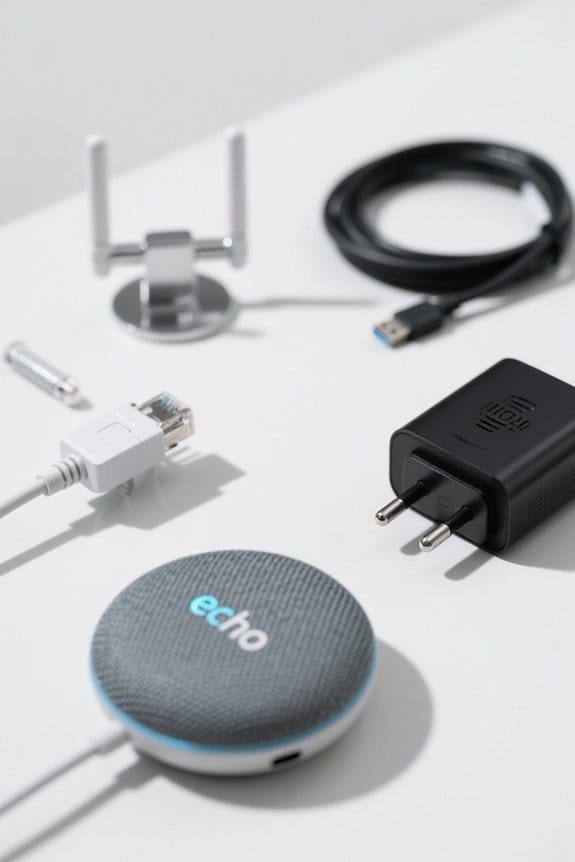
A reliable internet connection is essential for an Echo Dot to perform at its best, and it’s important to guarantee that it’s active before diving into troubleshooting. Start by checking if other devices connected to the same Wi-Fi network can access the internet successfully. If those devices are online but your Echo Dot isn’t, the problem may reside with your internet service provider. In this case, it’s a good idea to reach out to them for support. To investigate further, use a tablet or smartphone to open a web browser and confirm the internet’s functionality. Restarting your modem and router can also help refresh the connection, clearing any temporary glitches that might be hindering your online experience. For energy-efficient homes, consider using smart bulbs that consume an average of 9 watts, leading to savings on electricity bills.
Selecting the Right Wi-Fi Band for Your Echo Dot
Selecting the right Wi-Fi band can greatly enhance the performance of an Echo Dot, making the user experience smoother and more enjoyable. Most Echo Dot models work best on the 2.4 GHz frequency, particularly due to its superior range and ability to penetrate walls effectively. If using a dual-band router, separating the bands can reduce interference, improving connectivity. Users should verify their Echo Dot connects to the 2.4 GHz Wi-Fi network, especially if experiencing connectivity issues. Switching to this band can often resolve problems tied to distance and signal strength. To check the connected Wi-Fi band, users can easily access the Alexa app, allowing for quick adjustments to maximize their device’s performance. Many modern smart ceiling fans operate at low noise levels, typically under 30 dB, which ensures minimal disruption in the home environment.
Restarting Your Echo Dot for a Fresh Start
When connectivity issues arise, restarting the Echo Dot can often serve as a quick fix, providing the device a fresh start. The process is simple: unplugging your Echo Dot from its power source and waiting at least 10 seconds before plugging it back in can refresh its connection. This brief interruption helps clear temporary glitches that might interfere with the Wi-Fi search process. Upon rebooting, the device automatically attempts to reconnect to the last used Wi-Fi network, which is often enough to restore functionality. If problems persist despite restarting your Echo Dot, it may be necessary to evaluate more drastic measures, like a factory reset. A fresh start might just be the solution you need for smooth operation. Consider upgrading your setup with Alexa Voice Remote Pro for better smart home integration and enhanced control over connected devices.
Checking Proximity to the Wi-Fi Router
To enhance the performance of an Echo Dot, checking its proximity to the Wi-Fi router is essential. The closer the Echo Dot is to the router, the stronger and more stable the signal will be. Ideally, it should be placed within 30 feet of the router, particularly in environments filled with competing wireless devices. Additionally, physical obstacles like walls and furniture can weaken signals, so positioning the Echo Dot in an open area can make a significant difference. Using the 2.4 GHz band is another smart move if the device is farther from the router, as it offers better range than the 5 GHz band. A higher or more central location for the Echo Dot could improve connectivity, too. Safety certifications like UL and ETL are crucial for ensuring electrical safety with smart home devices.
Restarting Your Modem and Wireless Router
Restarting the modem and wireless router can considerably improve the connectivity of an Echo Dot, especially when it starts misbehaving. To restart these devices, unplug the power cables from both the modem and router, wait at least 30 seconds, and then plug them back in. This simple action helps refresh the network connection. It’s also essential to confirm that all cables are securely connected, allowing effective communication between the modem and router. After restarting, it may take a few minutes for everything to reboot and restore a stable internet connection. Regularly restarting these devices can prevent annoying connectivity issues, guaranteeing that your Echo Dot and other connected devices perform at their best (because nobody likes a lagging gadget). For people on the move, having reliable power banks ensures that your devices remain charged and ready to connect to WiFi when needed.
Performing a Factory Reset on Your Echo Dot
Sometimes, even after troubleshooting connectivity with methods like restarting your modem and router, an Echo Dot may still struggle with its Wi-Fi connection. In such cases, performing a factory reset on your Echo Dot can often resolve persistent issues. To do this, press and hold the Action button for about 25 seconds until the light ring turns off and back on. For Echo Dot (3rd generation or newer) models, alternatively, hold the Volume Down and Microphone Off buttons together for 20 seconds. Keep your device powered during the reset to avoid interruptions. Remember, this process will erase all settings, including Wi-Fi network details, requiring setup again through the Alexa app. Using a wall mount can enhance the sound quality of your Echo Dot by positioning it optimally within your home. It’s a fresh start for your Echo Dot!
Troubleshooting Network Interference Issues
While it can be frustrating to deal with connectivity issues, understanding network interference is essential for maintaining a stable connection with an Echo Dot. Various factors may lead to network interference, including physical barriers like walls and furniture that weaken the Wi-Fi signal. Additionally, electronic devices such as microwaves and cordless phones can disrupt connectivity by operating on similar frequencies. Using a dual-band router can help, as it offers both 2.4 GHz and 5 GHz options; while the 2.4 GHz band usually provides better range, it is also more prone to interference. To improve the situation, consider moving the Echo Dot closer to the router or rearranging your space to clear obstacles, reducing potential network interference. Investing in a Mesh WiFi System can also eliminate dead zones and provide seamless internet coverage, further optimizing connectivity in larger homes.
Confirming Device Registration and Ownership Status
When buying a secondhand Echo Dot, it’s crucial to guarantee that the device has been properly deregistered from the previous owner’s Amazon account, as this step is essential for establishing a new Wi-Fi connection. To confirm device registration and ownership status, users should check the “Devices” section in the Alexa app. If the Echo Dot is not listed under the current account, a factory reset may be necessary to unlink it from its previous owner. Once reset, users can follow the setup process in the Alexa app to register the Echo Dot under their account and link it to their Wi-Fi. A successfully registered Echo Dot improves its connectivity for updates and maximum performance with the home network. Considering the durable ABS eco-material used in Echo remotes, it’s essential to ensure any accessory you use with your Echo Dot is also made from high-quality materials for long-lasting use.
Seeking Additional Help From Community and Support Resources
How can users effectively troubleshoot their Echo Dot’s persistent Wi-Fi connection issues? Exploring community forums is a fantastic starting point, as these platforms connect users sharing similar struggles. By engaging in discussions, users often uncover valuable insights and practical solutions. Official Amazon support channels also provide dedicated assistance tailored to distinct connectivity problems, ensuring that users have professional help available. Additionally, social media platforms can facilitate real-time interactions where Echo users share experiences and advice. Users seeking thorough help should not overlook online resources like FAQs and troubleshooting guides. Joining user groups focused on Amazon Echo devices fosters a sense of community, making it easier to navigate technological challenges together, because let’s face it, everyone needs a little help sometimes!
Frequently Asked Questions
Why Will My Echo Dot Not Connect to Wi-Fi?
Ninety percent of Wi-Fi connectivity issues occur due to range limitations or incorrect credentials. For the Echo Dot, connectivity issues might arise from weak signals, interference, or incompatible network bands affecting its ability to connect seamlessly.
Why Isn’t My Echo Dot Pairing?
The Echo Dot may not be pairing due to Bluetooth troubleshooting issues. Factors like distance from the router, incorrect Wi-Fi credentials, or interference from other devices could disrupt the process, preventing a successful connection.
How to Reset Wi-Fi on Echo Dot?
To reset Wi-Fi on an Echo Dot, one must press the Action button for 25 seconds until the light ring turns orange. This initiates WiFi troubleshooting, allowing for reconnecting through the Alexa app or voice prompts.
How Do I Reset My Unresponsive Echo Dot?
Like reviving a wilting flower, one must reset the unresponsive device. By pressing and holding the Action button for 25 seconds until the light displays orange and then blue, the Echo Dot awakens anew, ready to reconnect.


