


When Alexa stops responding to voice commands, it can be quite frustrating. First, check your Wi-Fi connection, as a stable 2.4 GHz network is crucial for proper functionality. Next, try restarting the Alexa device by unplugging it for 30 seconds, which helps resolve minor glitches. Also, make sure the microphone isn’t muted (a red light will indicate this). If issues persist, consider updating the software and verifying device compatibility. There’s more you can explore to enhance your Alexa experience!
Key Takeaways
- Check if the microphone is muted by looking for a red light, and unmute if necessary.
- Ensure your Echo device is connected to the correct 2.4 GHz Wi-Fi network.
- Restart your device by unplugging it for 30 seconds to resolve minor software glitches.
- Reduce background noise to improve command recognition when speaking to Alexa.
- Regularly update the Alexa app and device software to maintain optimal performance.
Common Reasons Why Alexa Is Not Responding
When Alexa suddenly stops responding, it can be both confusing and frustrating, especially during those times when you really need help. One common reason may be a muted microphone, indicated by a red light; this prevents the device from responding to your voice at all. In addition, if there are issues with the power outlet, such as a faulty adapter or disconnection, Alexa may not function properly. Software glitches can also hinder performance, underscoring the importance of regular updates. Moreover, if there’s excessive background noise or unclear speech, Alexa might struggle to understand commands, limiting effectiveness. Always verify the microphone button is unmuted for the best experience, as small adjustments can make a big difference. For optimal functionality, ensure your smart devices operate on a compatible network, as many smart switches require 2.4 GHz Wi-Fi for seamless integration.
Check Your Wi-Fi Connection
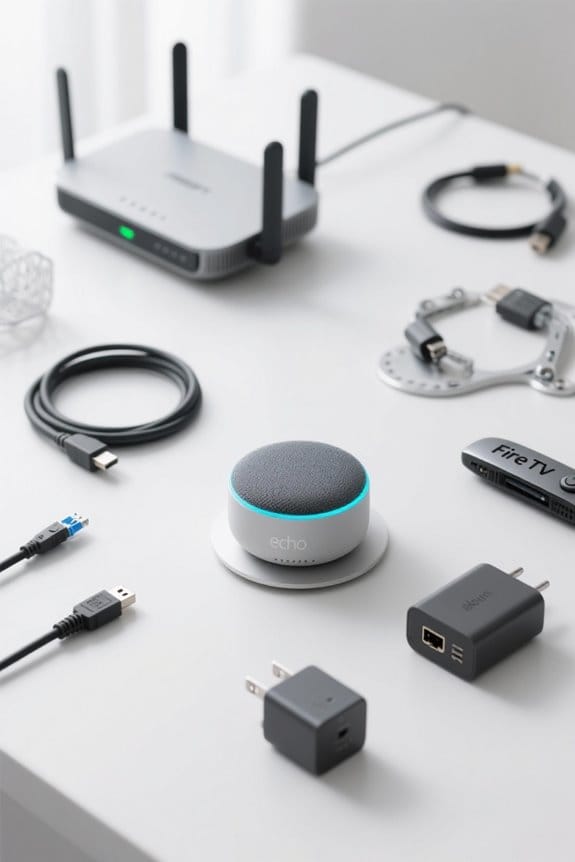
A strong Wi-Fi connection is fundamental for an Alexa device to function properly and respond effectively. To guarantee this, users should check if their Echo device is connected to the correct Wi-Fi network through the Alexa app. It’s also important to verify that the device is close to the router, ideally within 30 feet. If issues persist, consider testing whether other devices can access the internet, as this will help confirm the Wi-Fi connection’s reliability. For those with dual-band routers, switching between the 2.4 GHz and 5 GHz bands may improve connectivity as well. If all else fails, restarting the router might reset the connection and resolve any hiccups affecting Alexa’s ability to respond to voice commands. Additionally, considering a WiFi extender could enhance connectivity by eliminating dead zones and ensuring a stronger signal throughout larger spaces.
Restart Your Alexa Device
Troubles with Alexa might not always stem from Wi-Fi issues, so restarting the Alexa device itself can be a simple yet effective solution. If Alexa is not responding to voice commands, the first step is to restart the device. To do this, simply unplug it from the power outlet and wait for about 30 seconds—a little pause can go a long way! After that, plug it back in and allow it to fully restart, which is indicated by a blue LED light. This process can often resolve minor software glitches affecting responsiveness and performance. Regularly restarting the device not only addresses immediate issues but also helps maintain peak performance, ensuring Alexa runs smoothly when needed. Additionally, compatibility with Alexa and other major voice assistant platforms enhances the overall user experience, making sure your smart home devices integrate seamlessly.
Update Your Device Software
Keeping your Alexa device up-to-date is vital for best performance and responsiveness. To guarantee you have the latest software, access the device settings menu in the Alexa app and check for software updates. Before doing this, connect your Alexa to a stable Wi-Fi network to facilitate the process. If an update is available, you will receive a prompt to install it. After the installation, restarting the device helps the changes take effect, enhancing performance and fixing bugs that may impede its functionality. Regularly updating your device software is essential for maintaining compatibility with the latest Alexa features and third-party services, assuring a seamless experience for all users. A little maintenance goes a long way! In addition, ensure that your Alexa device is compatible with Wi-Fi standards like Wi-Fi 6, as this could improve connectivity and performance.
Check the Microphone Status
When troubleshooting an unresponsive Alexa device, checking the microphone status is a smart first step. Users should check the microphone button; if a red light is shining, it indicates that the microphone is muted. Pressing this button will enable the device to detect voice commands again, restoring functionality. If the red light is off but Alexa remains unresponsive, it’s time to test the audio output by asking a simple question and noting whether any response occurs. Additionally, some devices feature a physical mute button that might get accidentally toggled; ensuring this has not been engaged is important. Regularly monitoring the microphone’s condition for dust or wear can prevent future issues, leading to smoother voice detection. It’s also helpful to consider motion-activated backlighting in some Alexa Voice Remote Pro devices, which aids in low-light environments.
Reduce Background Noise
Many users may not realize how much background noise can interfere with Alexa’s performance, particularly when the volume exceeds 50 decibels. This noise level is comparable to a typical conversation, which can confuse the Alexa device and hinder its ability to hear voice commands accurately. To improve the situation, positioning the device in a quiet area, away from competing sounds like television or music, can enhance its responsiveness. Additionally, keeping Alexa within 5 to 10 feet in a controlled noise environment will promote better command recognition. Using noise-absorbing materials, such as carpets or curtains, can further reduce ambient sound levels. Regularly testing voice commands after these adjustments will help guarantee clearer communication with your smart home devices. For optimal results, consider placing the device in a location that supports major streaming services to ensure seamless integration with your entertainment system.
Change Your Wake Word
Adjusting the wake word for Alexa can markedly enhance its responsiveness and overall user experience. For those experiencing issues with command execution, changing your wake word might be a simple solution. Within the Alexa app, users can access settings to modify this feature. Options like “Alexa,” “Amazon,” “Echo,” and “Computer” are available, allowing for personalization to suit different environments. To change your wake word, open the app, select your device, tap on “Wake Word,” and choose your preferred option. This adjustment is particularly beneficial in households with multiple Alexa devices, as it minimizes confusion and boosts responsiveness, especially in noisy settings. A personalized wake word can make a world of difference in your daily interactions. Enhanced convenience through voice control is one of the key benefits of integrating smart devices like Alexa into your home, allowing for seamless management of various tasks and improved user experience.
Perform a Factory Reset
Experiencing ongoing issues with an Alexa device can be frustrating, but a factory reset might just be the answer. If the device is muted or struggling to stay connected to the internet, a factory reset can help clear persistent software bugs. To perform the reset, users should open the Alexa app, navigate to Devices, select the targeted device, tap on Factory Reset, and confirm the action. It’s important to remember that this will erase all custom settings, linked services, and alarms, returning the device to its original setup. After resetting, users will need to follow on-screen instructions to reconnect the device to Wi-Fi and reconfigure any personalized settings. So, jot down those preferences before hitting reset!
Troubleshooting Alexa Not Streaming Music
When Alexa is unable to stream music, it can throw a wrench in anyone’s listening plans. To troubleshoot this issue, first check the music streaming service linked to your Alexa device within the app, ensuring your subscription is active. Next, assess the Wi-Fi connectivity; a weak connection can hinder streaming. If the problem persists, consider updating the Alexa app or restarting the device by unplugging it for around 10 seconds and plugging it back in. Using explicit commands for desired songs or playlists can also help Alexa understand better. Finally, review the device settings to confirm the correct default music service and multi-room settings. These steps can assist in fixing Alexa not responding to music commands. Additionally, smart features and integration with Alexa can be affected by connectivity issues, so ensuring a stable 2.4GHz Wi-Fi connection is crucial for optimal performance.
Fixing Alexa Calling Issues
While enjoying music with Alexa can sometimes lead to minor hiccups, another common issue users face involves making and receiving calls. To fix Alexa Calling, users should first check their internet connection, as a stable Wi-Fi is fundamental for successful communication. Next, they should open the Alexa app to guarantee all necessary permissions are granted, allowing access to contacts. Updating the Alexa app to the latest version is also vital for smooth functionality. If problems still occur, it might help to unlink and re-link calling services within the app, fundamentally providing a reset. Additionally, disabling security systems that might interfere can improve connectivity. Some smart thermostats, like the ecobee Smart Thermostat Premium, integrate with Alexa for seamless voice command responsiveness, which can also be affected by connectivity issues. Fundamentally, these steps can help troubleshoot and resolve the most frequent calling issues users run into.
Verify Device Compatibility
Confirming device compatibility with Alexa is a crucial step for users looking to maximize their smart home experience. To verify device compatibility, first, check if your smart device is an Alexa-enabled product, as not all devices support Alexa functionality directly. Additionally, make certain any third-party devices are listed as compatible within the Alexa app or on the manufacturer’s website. Don’t forget to review the manufacturer’s guidelines for configuration steps to guarantee proper Alexa integration. Also, it is wise to update to the latest version of firmware. This guarantees peak compatibility, especially for devices like the discontinued Facebook Portal, which may face limitations in support for Alexa commands. A little due diligence goes a long way! Smart plugs, for example, often require UL and ETL certifications to ensure electrical safety compliance, which can be an important factor when considering compatibility and reliability.
Tips for Improving Alexa’s Performance
Device compatibility is just the beginning of the journey toward a seamless Alexa experience. First, verify your Echo device is within 30 feet of the Wi-Fi router, as a weak signal can hinder performance. Regularly check the Alexa app for software updates; keeping the device updated often resolves bugs that may interfere with responsiveness. Don’t forget to check the microphone either—if a red light appears, the mic is muted, preventing Alexa from hearing voice commands. Additionally, simplifying requests can greatly enhance comprehension, as complex phrases might confuse the system. If issues persist, try unplugging the device for 30 seconds to clear temporary glitches. These straightforward tips can help make interactions with Alexa much smoother and more delightful.
Frequently Asked Questions
Why Is Alexa Not Responding to My Voice Commands?
In a digital symphony, Alexa may falter due to voice recognition issues, internet connectivity problems, microphone malfunction causes, improper device placement, background noise interference, software update errors, or language setting conflicts, hindering effective communication.
How Do I Reset Unresponsive Alexa?
To reset an unresponsive Alexa, perform a factory reset through the app, or use a power cycle by unplugging and waiting briefly. Check network connection, device updates, and microphone issues as troubleshooting tips.
How Do I Fix Voice Control Not Working?
To fix voice control not working, one should check microphone settings, guarantee device compatibility, verify internet connectivity, perform firmware updates, and follow troubleshooting steps within the Alexa app settings to address voice recognition issues effectively.
Why Is Alexa Working on the App but Not by Voice Command?
Alexa’s working in the app but not via voice command may stem from voice recognition issues, network connection problems, or microphone sensitivity settings, necessitating software update checks and app performance troubleshooting to guarantee compatibility and skill management.


