


Fixing Fire TV Stick remote connection issues can be simple and effective. First, restart the Fire TV Stick by holding the Select and Play/Pause buttons. Next, change the batteries, ensuring they’re fresh and properly installed. Make sure the remote is within range, ideally without obstructions. If needed, unpair and reconnect the remote. As a last resort, reset the Firestick to factory defaults. Follow these tips, and watch your streaming experience improve (there’s always more to explore).
Key Takeaways
- Restart your Fire TV Stick by holding the Select and Play/Pause buttons on the remote for five seconds to resolve connectivity issues.
- Replace the remote’s batteries with fresh AAA batteries, ensuring correct orientation and clean terminals for improved performance.
- Ensure the remote is within 30 feet of the Fire TV Stick and maintain a clear line of sight to avoid signal obstruction.
- Unpair the remote by holding the Home and Back buttons, then re-pair it by holding the Home button again while the Fire TV Stick is on.
- If all else fails, perform a factory reset via Settings to restore the Fire TV Stick to its original settings.
Restart the Fire TV Stick

Restarting the Fire TV Stick can work wonders for resolving remote connection issues. To restart the Fire TV Stick, users can simply press and hold the Select and Play/Pause buttons on the remote for five seconds, initiating a reboot. Alternatively, one can navigate to Settings, select My Fire TV, and choose Restart for a software-based approach. After confirming the restart prompt, the device will turn off and back on, effectively revitalizing its settings. This quick action can greatly enhance the performance and connectivity of the remote. For more stable internet connections, consider using a Micro USB to Ethernet Adapter to ensure a smoother streaming experience. Regularly restarting the device is a recommended troubleshooting step for anyone facing persistent issues. In many cases, a simple restart can make a considerable difference, saving time and reducing frustration.
Change the Batteries
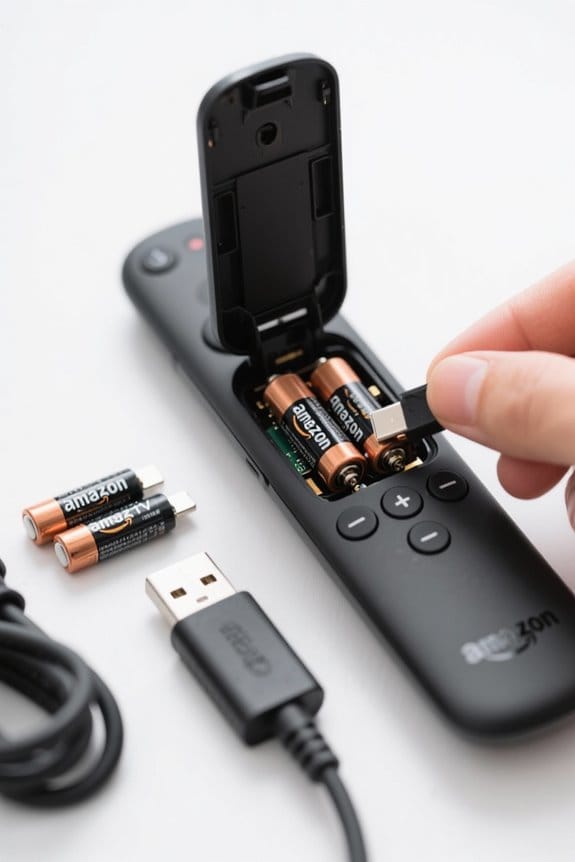
When troubleshooting Fire TV Stick remote issues, one of the simplest yet most effective solutions is to change the batteries. The remote typically requires two fresh AAA batteries, so verify they are compatible when replacing them. It’s quite common for a remote not working to be due to drained batteries, so trying a new set is a good first step. Additionally, check that the batteries are correctly placed—wrong orientation can prevent the remote from functioning. Cleaning the battery terminals may also improve performance, as dirt or corrosion can disrupt power. Opt for high-quality alkaline or lithium batteries for the best results, since some generic brands may not supply enough power (and who wants that annoyance?). Ensure that your power adapter provides 5 volts for optimal performance to avoid potential performance issues with your Fire Stick.
Make Sure Remote Is in Range

To guarantee a smooth connection between the Fire TV Stick remote and the device itself, users must be mindful of the remote’s range. The Firestick remote works via Bluetooth, boasting a maximum range of about 30 feet. However, some models may only operate effectively within 10 feet. Physical obstacles like walls or furniture can lead to connectivity issues, so it’s vital to maintain a direct line of sight. Users should make certain their remote is close enough to the Firestick for peak performance. If problems arise, moving closer to the device can greatly improve connection quality. Regularly checking for obstructions guarantees a reliable experience while enjoying favorite shows and movies (because who wants constant interruptions, right?). Consider using rechargeable AAA batteries to ensure your remote remains powered up and ready for use without the hassle of frequent replacements.
Remove Any Obstructions
Obstructions can play a sneaky role in disrupting the connection between the Fire TV Stick remote and the device. To enhance the remote’s performance, it’s essential to remove any physical obstructions between the remote and the Fire Stick. Items like books, boxes, or even furniture can weaken the Bluetooth signal considerably, leading to frustrating connectivity issues. Confirm no objects block the Fire Stick itself, as this may hinder the remote’s ability to establish a stable connection. Additionally, consider relocating nearby electronic devices like Wi-Fi routers, which can also cause signal interference. A direct line of sight is key—moving the Fire Stick closer to the remote can boost connectivity and improve your streaming experience (and who doesn’t want that?). For some, considering models with advanced motion detection features can be beneficial, as these can reduce unwanted interference by minimizing alerts, thus enhancing overall performance.
Unpair and Reconnect the Remote
Unpairing and reconnecting the Fire TV Stick remote can breathe new life into its performance, especially when pesky connectivity issues arise. To unpair the remote, simply press and hold the Home and Back buttons for 10 seconds until it disconnects. Next, to re-pair the remote, hold the Home button for another 10 seconds while ensuring the Fire TV Stick is powered on. It’s vital to stay within a range of 10-30 feet during this process, as distance can hinder a successful connection. If the Firestick remote is not working after the first attempt, don’t worry—just repeat the unpairing and re-pairing steps. Following the on-screen instructions promptly can make all the difference for a smooth reconnection. Additionally, checking device specifications can ensure compatibility and optimal performance, as seen with rechargeable AA batteries.
Reset Your Firestick
Sometimes, despite best efforts, connection issues can persist even after unpairing and reconnecting the Fire TV Stick remote. In that case, you might need to reset your Firestick entirely. To do this, navigate to Settings, then My Fire TV, and select Reset to Factory Defaults. Be aware that performing a factory reset will erase all your data and settings, returning the Firestick to its original condition. It’s essential to have a functioning remote or the Fire TV App on your smartphone to complete this process. A factory reset should be your last resort, especially if other troubleshooting methods failed to fix your Firestick remote. After the reset, you’ll need to reconfigure the device and reinstall your favorite apps. Ensuring you have a compatible Fire Stick power adapter can help prevent future connection issues by providing a stable power supply for your device.
Contact Amazon
What should someone do when persistent connection issues keep their Fire TV Stick remote from working? In this case, the best course of action is to contact Amazon customer service for assistance. They can help troubleshoot problems that other methods haven’t resolved. Before reaching out, it’s wise to gather essential details like the Fire TV Stick’s model number and purchase date. When you contact Amazon, whether by phone, chat, or email, representatives will guide you through tailored steps to fix the issue. If the remote is not working due to a defect, Amazon might even offer a replacement or repair solution. This support can make all the difference in getting your streaming experience back on track. For the best streaming performance, consider using Ethernet adapters to improve internet speed and reduce buffering.
Frequently Asked Questions
How to Fix Fire TV Remote Not Connecting?
To address remote pairing issues, consider battery replacement tips, ensuring fresh batteries are used correctly. Utilize a troubleshooting guide to reset the connection and remove obstructions, enhancing Bluetooth connectivity between the Fire TV Stick and remote.
What 3 Buttons Reset Firestick Remote?
In a moment of technological despair, the remote’s reset button functions come alive. By pressing the Home, Back, and Home buttons, the remote pairing process begins anew, releasing troubleshooting tips for renewed connection and hope.
Why Does the Firestick Remote Keep Disconnecting?
The Firestick remote disconnects due to low battery levels, limited range, or interference from other devices. Ensuring fresh batteries, maintaining ideal distance, and minimizing obstructions can improve connection stability and performance.
How to Fix Connection Error on Firestick?
In a world where remotes inexplicably disconnect, the wise resort to Firestick troubleshooting tips: replace remote batteries, guarantee ideal remote placement within 30 feet, and consider the ancient art of unpairing and re-pairing.


