

Troubleshooting touch screen issues with the Echo Show can be straightforward. Users often experience unresponsiveness or strange behavior, such as calibration errors. Start by restarting the device and cleaning the screen; this can enhance touch responsiveness. If problems persist, check for software updates. Performing a factory reset might also help recalibrate the touchscreen. If none of these fixes work, it may be time to contact customer support for further assistance and solutions. There’s more to explore on this topic!
Key Takeaways
- Restart your Echo Show multiple times to clear any temporary glitches affecting touch responsiveness.
- Clean the screen with an LCD cleaner to enhance touch sensitivity and remove dirt or smudges.
- Check and update the device software in settings to resolve any lingering bugs or issues.
- Perform a factory reset after backing up data to recalibrate touchscreen settings if problems persist.
- Contact customer support if touch functionality is still problematic after troubleshooting steps.
Common Symptoms of Touch Screen Issues
When using the Echo Show, many users encounter common symptoms that signal touch screen issues, which can be quite frustrating. One major complaint is that the touch screen becomes unresponsive after a few minutes, leading to frequent power cycles for temporary fixes. Additionally, a green bar appearing around certain words can indicate calibration problems and hinder interaction. Users also face challenges when scrolling or accessing menus, especially when trying to read recipes. Meanwhile, the voice assistant may repeat status updates, complicating navigation (not exactly helpful, right?). To address these issues, it’s advised to clean the screen to eliminate smudges, check for the latest software updates, or consider a Factory Reset if problems persist with the Amazon Echo Show. The Amazon Echo Studio offers high-quality sound and smart integration, which highlights the importance of maintaining device functionality for an elevated auditory experience.
Initial Troubleshooting Steps
A few straightforward steps can often bring the Echo Show touchscreen back to life when issues arise. Restarting the device several times can clear temporary glitches that affect the touchscreen’s responsiveness. If that doesn’t work, try unplugging the Echo Show for five minutes before reconnecting it. This simple act may reset any internal errors causing the problem. Users should also regularly clean the screen with an LCD cleaner to eliminate dirt or smudges that impair touch sensitivity. If the touchscreen remains unresponsive, consider a hard reset by pressing and holding the designated button combinations for 30 seconds. Finally, checking for software updates in the device settings is essential, as unresolved bugs might contribute to touchscreen issues. For users with an Amazon Smart Thermostat, this model is known for its efficient energy savings and Alexa integration, which can complement the Echo Show in managing smart home devices.
Recommended Products

WIDELY USED: Our 3 in 1 screen cleaner is specially designed for touch screen devices, which can quickly clean fingerprints, sweat and other dirt on the screen, easily meeting your daily needs of cleaning personal electronic devices

STREAK-FREE & SMUDGE-RESISTANT – Our fine mist spray effortlessly removes dust, fingerprints, and oily smudges without leaving streaks, keeping your screens spotless and looking like new. Perfect for phones, tablets, laptops, monitors, and car screens.

Industrial size, industrial strength
Potential Causes of Unresponsiveness
Numerous factors can lead to an unresponsive touchscreen on the Echo Show, making it frustrating for users trying to interact with the device. Touchscreen calibration errors often contribute to issues, causing the screen to ignore touch commands vital for navigation. Additionally, hardware faults, like damage to internal components or misalignment of cables, may consistently impair touch functionality. Users may also experience system overload when too many applications run simultaneously, which can hinder responsiveness. Furthermore, inadequate software updates can leave lingering bugs that disrupt performance, making regular updates essential. Conflicts with the Alexa app’s voice activation settings could further complicate matters, necessitating careful troubleshooting to restore the smart speaker to best working order. The integration of device compatibility with smart home systems like Alexa can also affect overall user experience, influencing how efficiently the device operates within an automated home environment.
Advanced Solutions for Persistent Problems
Although touchscreen issues can be frustrating, a few advanced solutions can help restore the Echo Show’s functionality. First, if the touchscreen remains unresponsive after a power cycle, users should rule out dirt or smudges on the screen that may interfere with its sensors. Additionally, relocating the Echo Show away from power-heavy appliances can improve performance. Echo Show 8 wall mounts offer secure and stable setups, which can prevent accidental falls or damage, potentially affecting touchscreen responsiveness. For more persistent issues, performing a factory reset might recalibrate the touchscreen settings—just guarantee important data is backed up first. It’s also wise to check for software updates in the Device Options, as outdated firmware can lead to problems. If unresolved, enlisting help from Amazon customer support is a practical next step, offering assistance or potential hardware replacement options.
Recommended Products
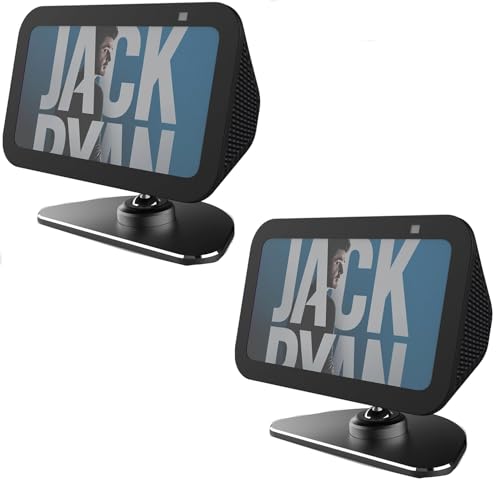
Wall mount for Amazon Echo Show 5: The first specially designed socket holder for the Amazon Echo Show 5 generation on the market (device and plug are not included), please note: we attach the groove of the Amazon Echo Show 5 mainly to the support arm. The double-sided tape is only an auxiliary function. You can check out our second picture. We guarantee that the correct operation can be completely fixed

Compatibility: This steel wall mounting bracket works for Show 21, show 15 (device not included). Heavy duty articulating arm holds up to 33lbs

【Compatible Devices】Made for Show 15 (Gen 1, Gen 2), and also compatible with Echo Show 21. Ideal for under-cabinet mounting in the kitchen. (This mount does not include the show 15 or show 21)
When to Contact Customer Support
When should users consider reaching out to customer support for their Echo Show’s touch screen troubles? If repeated attempts to restart or power cycle the device fail to restore responsiveness, it’s time to seek help. Users should also contact customer support if the touch screen only works temporarily after a power cycle, indicating a persistent issue that might need professional attention. Additionally, if troubleshooting steps, like checking for updates and resetting, haven’t resolved the problem, reaching out is the best course of action. For those with out-of-warranty devices showing consistent malfunctions, customer support can provide options for repair or replacement. Finally, if issues are widespread among users, consulting customer support can lead to helpful solutions tailored to the device. Considering the importance of battery life in devices like security cameras, ensuring your Echo Show’s hardware is functioning optimally is crucial for reliable performance.
Frequently Asked Questions
Why Is My Echo Show Not Responding to Touch?
The Echo Show may not respond to touch due to touch screen calibration issues, outdated device software, signs of hardware malfunction, user interaction habits, screen protector complications, or misconfigured settings impacting overall functionality and responsiveness.
How to Reset Alexa Echo Touch Screen?
Resetting the Echo Show touch screen resembles rebooting a paused symphony. Through Alexa voice commands or settings, one can initiate adjustments, ensuring touch feedback dances in harmony, complemented by software updates and app integration for seamless performance.
How Do I Fix My Unresponsive Touch Screen?
To fix an unresponsive touch screen, consider screen calibration options, perform touch sensitivity adjustments, follow software update procedures, explore display protection solutions, apply hardware troubleshooting tips, and consult touchscreen replacement advice if necessary.
How to Increase Alexa Sensitivity?
In a world dominated by smartphones, one could enhance Alexa’s sensitivity by prioritizing device firmware updates, adjusting user accessibility settings, ensuring ideal environmental conditions, and effectively calibrating voice commands while troubleshooting network connections.


