


Installing a Fire TV Stick is straightforward and will upgrade any regular TV to a Smart TV. First, plug the Stick into an available HDMI port and connect the power adapter. Next, turn on the TV, select the right HDMI input, and follow the on-screen prompts to connect to Wi-Fi and sign in with an Amazon account. Don’t forget to pair the remote! Curious about what apps and content you can explore? There’s more to discover!
Key Takeaways
- Plug the Fire Stick into an available HDMI port on your TV and connect the power adapter to an outlet.
- Turn on the TV and switch to the HDMI input where the Fire Stick is connected.
- If the remote doesn’t pair automatically, hold the Home button for 10 seconds to pair it.
- Select your Wi-Fi network and enter the password using the on-screen keyboard for internet connectivity.
- Sign in to your Amazon account to access apps and content after confirming your Wi-Fi connection.
Overview of the Amazon Fire Stick
The Amazon Fire Stick is a popular streaming device that can easily change any regular TV into a Smart TV, inviting users to explore thousands of streaming options. Plugging the Fire TV Stick into an HDMI port allows access to various streaming services through a simple interface. Users must have an Amazon account to set it up, although guest features are available. The Fire TV app enhances the streaming experience by letting users control their TV remotely. It features different models like the Fire TV Stick Lite and the advanced Fire TV Stick 4K, which supports stunning 4K Ultra HD and Dolby Atmos audio. With personalized profiles for all family members, it tailors content to suit everyone’s tastes. Choosing a soundbar with Dolby Atmos and DTS:X can enhance the audio experience further by providing immersive 3D sound.
Key Features and Models of Fire TV Stick

When exploring the world of streaming devices, understanding the various models and features of the Amazon Fire TV Stick can be quite rewarding. The basic Fire TV Stick allows for 1080p HD streaming, while the Fire TV Stick Lite offers a simplified experience. For those seeking higher quality, the Fire TV Stick 4K and 4K Max provide stunning 4K Ultra HD resolution and Dolby Atmos audio, enhancing movie nights. Many models come with the Alexa Voice Remote, making voice commands a convenient option for controlling your TV and streaming your favorite shows. Additionally, each device supports up to six user profiles, including kid-friendly options, ensuring personalized content recommendations for everyone in the household (what a smart move!). The Amazon Fire TV Cube offers hands-free streaming with octa-core processing for a seamless entertainment experience.
Recommended Products

This bundle contains Amazon Fire TV Stick 4K Max and Fire TV Soundbar.

This bundle contains Fire TV Cube (3rd Gen) and Alexa Voice Remote Pro

This bundle includes a Fire TV Stick 4K Max and a Luna Controller – the essentials to get started with Luna, Amazon's game streaming service. Prime or Luna subscription required (subscriptions sold separately).
Necessary Items for Installation

For a successful installation of the Fire TV Stick, a few essential items are required, ensuring a hassle-free setup. First, the Fire Stick device itself is necessary, along with a compatible TV featuring available HDMI ports. A power adapter is also critical to connect the Fire Stick to an outlet. Additionally, having a stable Wi-Fi network is paramount for smooth streaming. Ensure the cord fits the specific Fire TV Stick model for optimal performance and compatibility. To operate the Fire TV remote, don’t forget to grab two AAA batteries, as this control will enhance your viewing experience. Optional accessories like an HDMI extender cable can be helpful in tight spaces, ensuring proper setup. Finally, having a smartphone with the Fire TV app can provide additional remote control convenience (because who doesn’t like options?).
Recommended Products
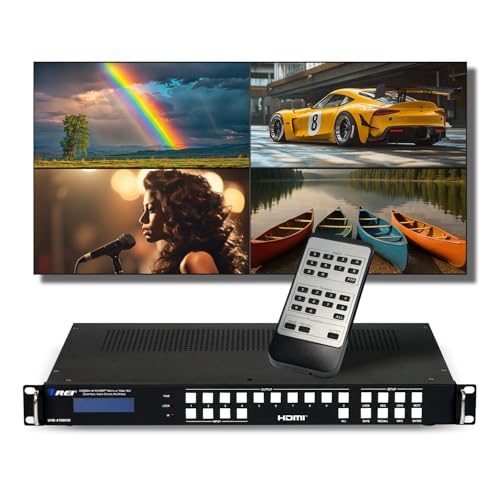
4×4 HDMI Multiviewer & Video Wall Controller – Integrate up to four HDMI sources (Blu-ray player, PC, laptop, gaming console, media player) and drive four displays in a variety of layouts—4×4, 4x3, 3x5, 2×2, 1×2, 2×1, 1×3, 3×1, 1×4, or 4×1 (each window at 1080i)—or switch to 4×16 Matrix Mode to send the same source or four different sources to all four 4K UHD screens; built-in bezel compensation ensures seamless edges, while advanced EDID management guarantees stable handshake and resolution compatibility.
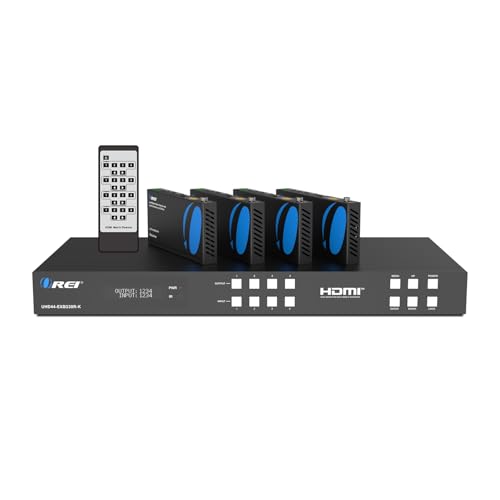
OREI 4 Inputs & 4 Outputs Over CAT6/7 LAN Cable upto 230 Feet. Plus Additional 4 Loop Out HDMI Source at Local Location. Perfect Professional Distribution Product. Ideal for 4K Blu Ray Players, Game Consoles, Media Players, Satellite Receivers, Computers, Laptops and Other Sources. The device comes with a dual voltage supply using a US plug, and an adapter/converter is provided for international use.

Step-by-Step Installation Process
Installing the Fire TV Stick can be an exciting experience, as it opens up a world of streaming possibilities. Begin by plugging the device into an available HDMI port on your TV before using the included power adapter to plug it back into a wall outlet. Next, power on the TV and switch to the correct HDMI input to explore the Firestick home screen. The remote control typically pairs automatically, but if not, hold the Home button for 10 seconds. Once paired, follow the on-screen instructions to enter your Wi-Fi password. This setup is essential for accessing streaming content and connecting smart home devices. Consider using a long-range HDTV antenna for enhanced reception capabilities and access to more channels alongside your streaming services. You’re one step closer to enjoying personalized viewing experiences!
Connecting to Wi-Fi and Amazon Account
Connecting the Fire TV Stick to Wi-Fi and linking it to an Amazon account are essential steps for accessing the full potential of the device. First, the user should navigate to the Settings menu, select Network, and then choose the available Wi-Fi network. They’ll need to enter the Wi-Fi password using the on-screen keyboard. After successfully connecting to Wi-Fi, a prompt will appear to sign in to an Amazon account. Users can either enter existing details or create a new account. Before this, ensuring batteries are properly inserted in the remote control is vital; if pairing fails, hold the Home button for about ten seconds. A stable Wi-Fi connection is necessary for streaming thousands of apps available for download, enhancing the overall experience. For users seeking to enhance their workspace’s visual appeal, utilizing dual monitor stands with cable management features can provide an organized and efficient setup.
Pairing the Fire TV Remote
Pairing the Fire TV remote is a key step in accessing the device’s full potential. When the Amazon Fire TV Stick is first powered on, the remote typically uses automatic pairing, simplifying setup. If this process fails, users can manually pair the remote by pressing and holding the Home button for about ten seconds. It is crucial to use fresh batteries, as old ones can cause connectivity issues during pairing. The Fire TV remote also features voice commands through its built-in microphone, providing an enhanced navigation experience. For those who prefer, the Fire Stick Remote App can serve as an alternative control method, ensuring that you can always access your favorite content. Enjoy your streaming journey! For a seamless streaming experience, consider using an Ethernet adapter to reduce buffering and enhance connection stability.
Troubleshooting Common Setup Issues
Even with the remote successfully paired, some users may encounter hiccups during the setup of their Fire TV Stick. If the screen remains blank, confirm the device is firmly connected to an HDMI port and that the TV is set to the correct input. For persistent issues, check the power source; the Fire Stick needs a dedicated wall outlet, not just the TV’s USB. If the remote is not working, restarting the Fire Stick by unplugging it can help. Also, confirm a smooth Wi-Fi connection by selecting the correct network and inputting the proper password—after all, internet service matters! Finally, remember to check for software updates regularly, as these can enhance performance and fix pesky bugs. For those with gardens, using a garden hose timer can automate watering, reducing manual effort and conserving water.
Exploring Apps and Content on Fire TV Stick
When exploring the vast world of apps on the Fire TV Stick, users might be pleasantly surprised by the sheer number of options available. It provides access to thousands of apps, including popular streaming services like Netflix, Hulu, and Amazon Prime Video. Users can easily find both free and paid options, such as YouTube and Pluto TV. The Fire TV Stick also supports categories like music and games, ensuring diverse entertainment. With Alexa voice commands, accessing favorite apps or discovering new content becomes simpler and quicker. Additionally, parental controls allow for safe viewing experiences. User profiles can be created, enabling personalized content recommendations tailored to individual preferences, making it highly convenient for families. For an even better streaming experience, the Fire TV Stick supports HDR video, enhancing the visual quality of compatible content.
Frequently Asked Questions
Can You Add a Fire Stick to Any TV?
The Fire Stick offers broad compatibility with various TVs, enhancing streaming capabilities through available HDMI ports. Proper device setup facilitates seamless remote functionality, improving user experience when connecting accessories to switch TV input options efficiently.
How Much Is the Monthly Fee for Fire Stick?
The Fire Stick dances in the domain of entertainment without a monthly fee for the device. However, subscription costs for streaming services vary, ultimately crafting a unique financial tapestry based on user experiences and choices.
What Do I Need to Install a Fire Stick on My TV?
To install a Fire Stick, one needs a compatible TV with HDMI ports, a stable internet connection, proper power supply options, and a remote control for function. Setup troubleshooting tips may assist during the installation process.
Do You Just Plug a Fire Stick Into a TV?
Yes, a Fire Stick offers convenience by plugging directly into a TV’s HDMI port. For ideal setup, users should guarantee compatibility, utilize installation tips, and explore streaming options complemented by voice control and remote features.


