


Pairing Bluetooth devices with Fire TV is simple and improves your viewing experience. Start by accessing the Bluetooth settings through the main menu. Make sure your device is in pairing mode, typically done by holding a button until it blinks. Then, navigate to the “Controllers and Bluetooth Devices” section to find your device. Popular options include wireless headphones from Bose or gaming controllers like the Xbox One. Stick around, and you’ll discover troubleshooting tips and more device recommendations!
Key Takeaways
- Start from the Fire TV home screen, navigate to Settings, and select Controllers and Bluetooth Devices to initiate pairing.
- Ensure your Bluetooth device is in pairing mode; typically activated by holding the power button for several seconds.
- Choose Other Bluetooth Devices in the Settings menu to scan for discoverable devices near Fire TV.
- Confirm the device is not previously connected elsewhere and is within Bluetooth range of the Fire TV.
- If connection issues arise, restart both the Bluetooth device and Fire TV, and check for firmware updates if necessary.
Accessing Bluetooth Settings on Fire TV
Accessing Bluetooth settings on the Fire TV can open up a world of connectivity for users looking to enhance their viewing experience. To start, users need to press the Home button on their remote, leading them to the Main Menu. From there, guiding to the settings allows for a seamless exploration of various Bluetooth device types compatible with Fire TV. Whether seeking headphones for private listening or speakers for a richer sound, understanding Fire TV compatibility is essential. Users should keep in mind the types of audio devices available, as well as their Bluetooth range, to maximize performance. Additionally, consider how voice control compatibility with Amazon Alexa can enhance your Fire TV experience, allowing for simple commands and improved automation. Once connected correctly, the viewing experience transforms, revealing new possibilities for enjoyment and interaction—with a little patience and curiosity, it’s all possible.
Putting Bluetooth Devices Into Pairing Mode

When it comes to connecting Bluetooth devices, understanding how to put them into pairing mode is crucial for a smooth experience. Most devices require holding down a specific button or combination of buttons, often marked with a Bluetooth or power symbol. Typically, pressing and holding the power button for about 3 to 10 seconds will activate pairing mode, signaled by a blinking LED or audio cue. For different devices, such as remotes, headphones, or speakers, there are unique pairing tips to follow. Users should guarantee their device is not connected elsewhere and within proximity of the Fire TV. Always check the manufacturer’s manual, as each device may have its own method for putting devices into pairing mode. It’s important to note that some devices, like the Alexa Voice Remote Pro, provide additional functionalities such as customizable buttons and remote finder technology, which can enhance the overall user experience.
Recommended Products

HIGH-PERFORMANCE AV RECEIVER - Enjoy 8K video & 3D audio via Denon AVR-X6800H HDMI receiver and Bluetooth Amplifier, get enveloped sound with Dolby Atmos, DTS:X, IMAX Enhanced & Auro 3D plus Dolby Surround, DTS Neural:X & Auro-Matic upmixer

Escape into your own world of high-quality sound

Dolby Atmos Surround Sound: Lose yourself in the moment, with a three-dimensional listening experience. Feel the real power of your favourite TV shows and films.
Pairing Bluetooth Devices With Fire TV

Pairing Bluetooth Devices With Fire TV
Successfully pairing Bluetooth devices with Fire TV paves the way for enhanced entertainment experiences, allowing users to enjoy audio without disturbing others or to use specialized controllers for gaming. To begin the Bluetooth pairing process, users should navigate to the Fire TV home screen and access the Settings menu. From there, selecting Controllers and Bluetooth Devices opens options for pairing. After choosing the appropriate category, like Other Bluetooth Devices, Fire TV scans for discoverable devices. Once the desired device appears on the screen, selecting it sends a pairing request. It’s essential that any Bluetooth device used is compatible and in pairing mode. With these steps, users can easily enhance their Fire TV experience (and maybe score some extra game points too). For optimal performance, consider using a controller with Bluetooth 4.0 or higher, which minimizes input lag and ensures a smoother gaming experience.
Recommended Products
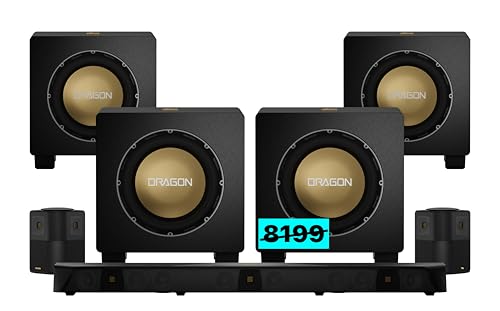
WHILE SUPPLIES LAST @ $6298 (save $1901). Built on 70+ years of audio legacy & the legendary NAKAMICHI DRAGON name, this #1-rated extreme system is the dream theater everyone talks about, driven by our 11.4.6-ch architecture + Pro-Cinema Engine. Extreme plug-and-play performance made simple.

Outdoor TV with 2000nit Ultra High Brightness: The Sylvox Pool Pro 3.0 series outdoor smart TV boasts a maximum brightness of 2000nit, which is 6-8 times brighter than a regular home TV. Even under direct sunlight, it ensures a clear viewing experience. High brightness, 4K ultra-high definition, 3D surround sound - create your outdoor theater and enjoy quality time outdoors

13.2 CH A/V Receiver (150W + 150W 8ohms, 1kHz, 2ch, THD 0.9%)
Common Compatible Bluetooth Devices
Bluetooth devices offer a fantastic way to elevate your Fire TV experience, making it essential to know which ones are compatible. The best wireless headphones include options like Bose, known for universal compatibility, and Soundcore headphones, praised for minimal audio lag. For those who prioritize sound quality, the Sennheiser HD 4.50 BTNC provides excellent noise cancellation. When gaming, popular game controllers like the Xbox One and PlayStation 4 DualShock work seamlessly through Bluetooth pairing. Also, generic Bluetooth controllers can connect easily. Users can enjoy pairing multiple game controllers, enhancing multiplayer sessions. For a more convenient experience, wireless keyboards and Bluetooth speakers also connect easily, offering added functionality to your Fire TV setup—because who wouldn’t want smoother navigation? To further enhance your entertainment setup, consider using programmable slow cookers that are easy to clean and ideal for meal prep during extended viewing sessions.
Recommended Products

Progressively tech; Delivers exceptional sound and comes packed with advanced wireless technologies like Wi-Fi, airplay 2, Spotify connect, Bluetooth and music cast

AVENTAGE: our top-tier line featuring premium build quality and sound performance

16 inch 1920*1200 touchscreen supports playback of 4K video files:This protable car tv is equipped with 16inch, 1920*1200 resolution HD touch screen ,supports 4K HD video playback.Make the screen display super clearer and more delicate.16inch headrest monitor for car is compatible with MP4/ MPG/AVI/MKV/MOV/3GP/MP3/MAV/FLAC/AAC/OGG/OGA audio&video formats
Troubleshooting Bluetooth Pairing Issues
Troubleshooting Bluetooth pairing issues can sometimes feel frustrating, especially when devices refuse to connect as expected. First, verify the Bluetooth device is in pairing mode and close to the Fire TV, as distance can hinder detection. If it’s previously connected to another device, disconnect it first. Some devices may also not work due to compatibility issues; refer to manuals for confirmed pairing methods. If they do appear but won’t connect, try restarting both devices. Falling short on firmware updates can also create problems, so check for those. Finally, remember that Fire TV may only support devices without PIN requirements and can connect only one pair of headphones at a time—no double-dipping allowed (sorry!). It’s important to note that self-discharge rates of batteries can affect the performance of Bluetooth devices, especially if they are not used frequently, so ensure your batteries are well-maintained.
Frequently Asked Questions
Can I Use Bluetooth Devices With Fire TV Stick Lite?
The Fire TV Stick Lite offers Bluetooth compatibility, allowing users to connect various devices. Device pairing can be achieved through the settings menu, enabling functionalities such as audio streaming and usage of compatible game controllers or keyboards.
How Many Bluetooth Devices Can I Connect to Fire TV?
Fire TV boasts astounding Bluetooth capacity, allowing connections with up to seven devices! However, device compatibility means only one audio device streams sound at a time—an obstacle for the dual audio enthusiasts craving simultaneous enjoyment.
Is There a Limit on Audio Streaming to Bluetooth Speakers?
Yes, there is a limit on audio streaming to Bluetooth speakers; only one device can connect at a time. Users should consider audio quality and device compatibility when selecting additional hardware solutions for simultaneous streaming.
Can I Connect Multiple Bluetooth Headphones to Fire TV?
Despite the allure of a banquet filled with auditory delights, only one Bluetooth headphone can partake in audio streaming at a time on Fire TV, limiting headphone compatibility. A dual audio transmitter provides a workaround.
Do All Fire TV Models Support Bluetooth Connectivity?
Not all Fire TV models support Bluetooth connectivity. Most models produced after 2017 have Bluetooth compatibility, while earlier versions may lack this feature, varying in support for specific Bluetooth profiles across the Fire TV models.


