


Setting up parental controls on the Echo Dot Kids Edition is straightforward and empowering for parents. Start by launching the Alexa app and enabling Amazon FreeTime to create customized child profiles based on age. You can set filters for content, restrict voice purchases, and manage daily usage limits through the Parent Dashboard. This offers a safe environment where kids can explore, learn, and have fun. There’s even an option for two-factor authentication to enhance security. Find out how to optimize these features further.
Key Takeaways
- Launch the Alexa app and select the Echo Dot Kids Edition to start enabling parental controls.
- Toggle on FreeTime and create customizable child profiles with names and ages.
- Confirm your identity with an Amazon password during the setup process.
- Use the Parent Dashboard to set content filters, time limits, and customize controls for each child’s profile.
- Regularly review and update settings to ensure they align with evolving safety guidelines.
Overview of Parental Controls on Alexa
When parents consider the Echo Dot Kids Edition for their households, the parental controls available through Alexa can greatly enhance their peace of mind. Utilizing Amazon FreeTime, parents can implement effective Alexa parental controls that allow for customization of kid-friendly content. They can create a child profile for each of their kids, tailoring settings based on age and individual needs. The Parent Dashboard provides a user-friendly interface to monitor activity, manage time limits, and adjust content restrictions seamlessly. Additionally, features requiring parental consent guarantee children’s privacy and security are respected within Alexa’s environment. With these robust tools, parents can confidently let their children explore while maintaining necessary oversight (because who doesn’t love peace and quiet?). To ensure effective air purification throughout the home, smart air purifiers compatible with Alexa can be utilized, providing both a healthier environment and an easy integration with existing smart home setups.
Setting Up FreeTime on Alexa
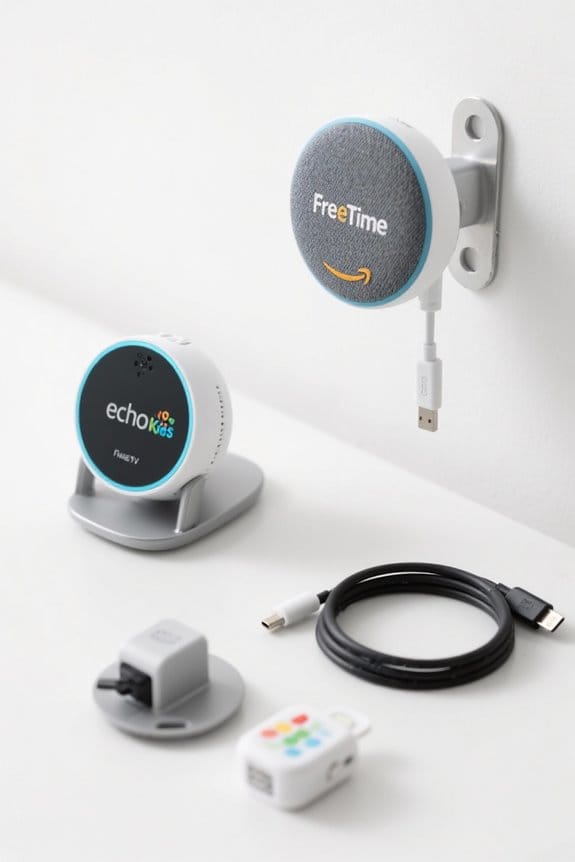
Setting up FreeTime on an Echo Dot Kids Edition is a straightforward process that can greatly enhance how children interact with Alexa. To begin, launch the Alexa app, tap the Devices button, and select the Echo Dot Kids Edition from the connected devices list. By toggling the FreeTime option on, parents enable essential parental controls. Next, tap “Setup Amazon FreeTime” to start adding child profiles, filling in details like names and ages, and confirming identity with an Amazon password. Once set up, parents can customize features such as content filtering, communication access, and time limits. The Parent Dashboard allows easy management of settings, ensuring a safe and enjoyable experience while they monitor usage effectively. Smart home devices, like Kasa Smart Light Switches, can also be integrated into the home environment to enhance convenience and security.
Adding Child Profiles

Adding child profiles to the Echo Dot Kids Edition is quite simple, enabling personalized experiences for each child. To begin, parents launch the Alexa app and toggle on “Setup Amazon FreeTime” for the device. They’ll need to enter essential information, including the child’s name, age, and gender. Tapping “Add Child” completes the profile creation, and parents can easily add multiple children by selecting “Add Child” again. For security, two-factor authentication is required to verify identity during setup, ensuring safety for Kids. Once all profiles are in place, parents can manage individual settings via the Parent Dashboard in the Alexa app, providing ongoing adjustments tailored to each child’s needs. This personalization makes the Echo Dot Kids Edition even more engaging. Additionally, integrating smart lighting, such as Kasa Smart Light Bulbs, can further enhance the child’s interactive experience by allowing voice-controlled lighting adjustments.
Configuring Parental Control Options
Configuring parental control options on the Echo Dot Kids Edition is an important step that enhances a child’s experience while ensuring safety and age-appropriate content. Parents begin by enabling Amazon Kids through the FreeTime feature in the Alexa app. This allows them to customize settings for parental controls on Alexa, such as implementing the Explicit Filter for music and limiting voice purchasing. By accessing the Parent Dashboard, they can set daily time limits and adjust content availability to match their child’s needs. Regularly reviewing these settings keeps pace with changing requirements and adheres to the latest safety guidelines. Additionally, the KERUI Home Security System offers a robust alert system that can be integrated into a smart home setup, ensuring quick responses to any disturbances. Ultimately, such customization fosters a secure and enjoyable environment for young users (in a tech-savvy world, that’s a win!).
Managing Kids Settings and Content
Managing the kids’ settings and content on the Echo Dot Kids Edition is essential for parents looking to create a safe and engaging digital environment. Parents can easily access the Parent Dashboard through the Alexa app or their Amazon account to manage kids’ settings. Here, they can set device usage limits to promote healthier screen time habits. Additionally, parents can monitor content, guaranteeing that everything is age-appropriate and engaging for their child’s voice and interests. The flexibility to update settings at any time allows for tailored access, adapting to changes in their child’s preferences. Overall, the Parent Dashboard guarantees a safe usage experience, providing peace of mind as children explore and learn through digital content. For enhanced control, parents might consider using Alexa-compatible smart plugs to manage the power supply to devices, ensuring they align with set usage limits and schedules.
Privacy Considerations
Privacy is an essential aspect to contemplate when using the Echo Dot Kids Edition, especially for parents concerned about their children’s safety online. Parental consent is important for Amazon to collect personal information, such as names, birthdates, and even voice recordings. Given that data collection may include voice history, photos, and location, there are significant privacy concerns for families. Amazon has faced legal challenges over the handling of children’s data, particularly for retaining voice recordings indefinitely. However, parents can manage privacy settings to delete voice history and enable auto-deletion features. Understanding the complexity of Amazon Alexa’s privacy policies is important for addressing privacy issues effectively, ensuring children’s data remains secure in this digital age. Parents should consider the integration and compatibility of smart devices with the Echo Dot Kids Edition to ensure comprehensive privacy controls are in place.
Frequently Asked Questions
How to Make Echo Dot Kids Safe?
To make the Echo Dot Kids safe, parents can utilize voice recognition, set age restrictions, content filtering, activity monitoring, device permissions, music choices, skill limits, privacy settings, and educational features while managing screen time effectively.
Can You Add Parental Controls to Echo Dot?
Yes, parental control options are available for the Echo Dot, offering safety features such as voice command restrictions, age-appropriate content, and the ability to set time limits, block explicit content, and manage device permissions effectively.
Does Kids Alexa Need to Be Connected to Parent Account?
Yes, the Kids Alexa requires connection to a parental account for effective management, including personalized child-friendly content, device management options, and usage monitoring tools, ensuring a secure environment through features found in the Alexa app settings.
How to Prevent Kids From Buying Things on Alexa?
To prevent kids from buying things on Alexa, utilize voice shopping restrictions, set purchase limits, enable account verification, adjust parental permissions, monitor spending alerts, review purchasing history, and adjust privacy settings within device settings. Safe browsing is essential.


