


To set up multi-room audio with multiple Echo devices, first, pair each device with the Alexa app. Confirm they’re connected to the same Wi-Fi network. Organize your devices into groups based on rooms, making it easier to control them. Then, create a Multi-Room Music group within the app. This allows synchronized playback across all devices, making your home feel more connected. Excited to amplify the audio experience? There’s more to explore about personalizing your setup.
Key Takeaways
- Open the Alexa app and tap the Devices icon to access settings for Echo devices.
- Select the plus (+) button, then choose “Combine speakers” and select “Multi-Room Music.”
- Choose the Echo devices you want to group for synchronized audio playback.
- Name your multi-room music group for easy identification during playback commands.
- Use voice commands or the app to enjoy music seamlessly across your selected devices.
Pair Your Echo Device With the Alexa App
Setting up an Echo device with the Alexa app is a straightforward process that any user can easily navigate. First, users open the Alexa app and tap the Devices icon at the bottom. By selecting the plus (+) button, they can choose to Add Device, specifically selecting Amazon Echo. After confirming the type of Echo device, they should verify it’s plugged in, waiting for the light to turn orange. Then, tapping Continue allows them to explore their Wi-Fi network options. Entering the password connects the Echo device to the internet, paving the way for features like Multi-Room Music. Once confirmed, users can begin enjoying seamless audio across multiple Echo devices with simple voice commands, enhancing their listening experience. Additionally, ensure your Echo devices operate on 2.4GHz Wi-Fi for optimal connectivity and compatibility with smart home devices.
Recommended Products

Meet Echo Studio: Redesigned in a compact size that is 40% smaller than the original to deliver immersive spatial sound. Dolby Atmos adds space, clarity, and depth to make your entertainment even better. Enjoy powerful bass and crystal-clear vocals. Features a built-in smart home hub and Omnisense technology for highly personalized experiences. All powered by AZ3 Pro chip for advanced performance.

This 2-pack contains Echo Dot Max (2) smart speakers in Amethyst, so you can pair these compatible speakers and fill your home with music.

The Mandalorian & Grogu Ultimate Fan Bundle: Includes 2 Echo Dots, Charcoal, 1 Mandalorian Stand, and 1 Grogu Stand
Connect Your Echo Device to Wi-Fi

Once the Echo device is paired with the Alexa app, connecting it to Wi-Fi can be the next step in enhancing the smart home experience. To connect your Echo device to Wi-Fi, first, open the Alexa app and select the new Echo from the displayed list. Make sure the device is powered on, and the light ring is orange, indicating it’s in setup mode; then tap Continue in the app. Choose your Wi-Fi network, and carefully enter the password. After tapping Connect, a success message will appear, and Alexa will announce that the device is ready for use. Finally, verify functionality by asking Alexa a question, ensuring everything is set for your multi-room setup and multi-room group experiences. For those looking for quick installation of home security systems, products like the eufy Security 5-Piece Home Alarm Kit can be set up in minutes.
Recommended Products
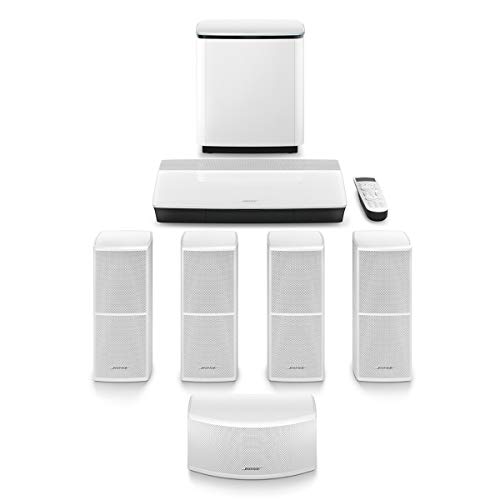
This premium, complete home entertainment system combines advanced technologies with simplicity and elegance to deliver multi-dimensional, immersive surround sound
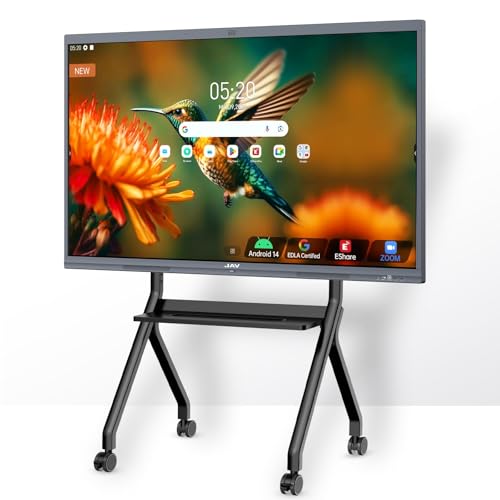
Enterprise-Ready Interactive Hub: 75" 4K UHD multi-touch glass with 0.8mm anti-glare coating, driven by NeoVision AI optics (30FPS gesture tracking) and Arm DynamIQ compute architecture (4*[email protected] + G52 GPU). Android 14 SuperDevice Engine sustains 16-layer whiteboarding sessions while managing 4K/60Hz wireless casting across 8 endpoints.

4K Crystal Clear Imaging & Next-gen 360° Camera Lens: Powered by a four-camera array, Nearity 360 Alien delivers a true 360° panoramic view in 4K Ultra HD resolution. Every angle of the room is captured with seamless clarity, ensuring all participants are equally visible and engaged. Designed for hybrid collaboration, it transforms meetings into an immersive experience.
Organize Your Echo Devices Into Groups

Organizing Echo devices into groups can greatly enhance the multi-room audio experience, making it easier to enjoy music throughout the home. To organize your Echo devices into groups, open the Alexa app and navigate to the Devices screen. Tap the plus (+) button at the top right corner and select the “Add Group” option. Name the group based on the room or purpose, such as “Living Room” or “Office.” Default groups like “Everywhere” make setup simple. After creating the group, add the desired Echo devices, ensuring they all connect to the same Wi-Fi network for seamless playback. Once grouped, users can easily play music across all devices using voice commands or by selecting the group in the Alexa app. Smart thermostats, such as the Amazon Smart Thermostat, can also be managed through Alexa to enhance automation throughout your smart home ecosystem.
Recommended Products

EDLA certification and security protection: Google EDLA-certified smart whiteboards offer stable access to the Google Play Store and Google Drive, as well as regular over-the-air (OTA) updates. With USB data transfer protection and NFC-based multi-user management, they offer enterprise-grade privacy protection, even in public spaces
![[Official Licensed Apps/40W Dolby Audio]Projector with WiFi and Bluetooth with Smart OS 2.0&AI Auto 3s Focus Outdoor-Projector-4K, ONOAYO ONO5Pro Movie Proyector for Bedroom/Celling/Home](https://m.media-amazon.com/images/I/41t5-eJztLL._SL500_.jpg)
[Unplug & Play Entertainment – Zero-Setup Smart TV Experience] Forget complicated wiring or external TV sticks. This smart projector comes with Smart TV Pro OS 2.0 boots in seconds with 3× faster processing thanks to the AI-driven next-gen chip—apps open instantly, streams never buffer. Pre-loaded with YouTube, Prime Video, Disney+, plus 1,500+ free live channels (news, sports, kids' programming). The Bluetooth remote controls your 4k projector, console, and soundbar via CEC—cut through walls from 10 meters away. Perfect for those who crave big-screen luxury—without drilling holes or sacrificing space to a bulky TV

OUR LARGEST SMART DISPLAY YET - A stunning 21" Full-HD (1080p) smart display with built-in Fire TV and Alexa that's perfect for your kitchen and built to show you more. Use customizable widgets to keep your day on track, experience your favorite content with powerful vibrant sound and immersive HD streaming, and stay connected with crisp, clear video calling, with 3.3x zoom and wide field of view.
Create a Multi-Room Music Group
Creating a Multi-Room Music Group offers an exciting way to enhance the home audio experience, making it easy to enjoy music in various rooms simultaneously. To initiate this process, users should open the Alexa app, locate the Devices icon, and tap the plus (+) icon. From there, selecting the Combine speakers option will open several choices, including Multi-room music. Users can add any online Echo devices, ensuring they work seamlessly together. When naming the group, it’s possible to choose from existing names or create a custom one, simplifying playback commands. Once established, playback can easily start by using voice commands directed at the group name or by selecting the group directly within the Alexa app for synchronized enjoyment. Additionally, integrating smart outlets like the Kasa Smart Plug HS103P4 can enhance home automation by allowing users to control other devices in the group with ease.
Recommended Products

Mini-LED X - See your favorite show or movie in a whole new light. Mini-LED X is made up of thousands of LEDs, think of them like pinpoints that illuminate your screen. Plus, with over 40,000 local dimming zones, you can experience the whitest whites, the darkest darks, and everything in between.
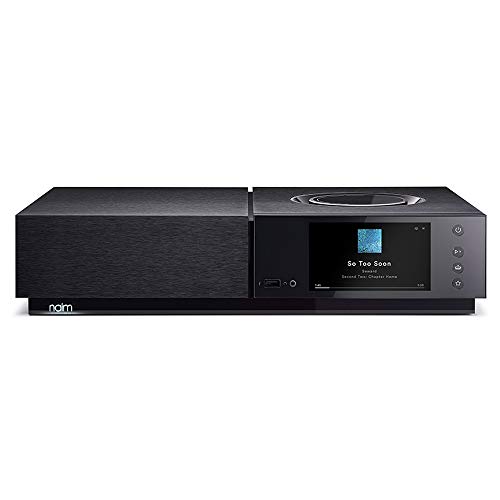
3 Tier PCB arrangement to provide the shortest analogue signal path and best sound

STUNNING VIDEO QUALITY – The Canon CR-N500 Remote PTZ camera delivers advanced performance and outstanding 4K 30p and Full HD 60p video output thanks to a 1" CMOS sensor, DIGIC DV 6 image processor, and Dual Pixel CMOS AF for fast, reliable, and precise auto focus
Music and Audio With Multiple Echos
While setting up multiple Echo devices can seem intimidating, it opens up a world of audio possibilities for music lovers. By utilizing the Alexa app, users can create a multi-room music grouping, allowing synchronized playback across various Echo devices. This feature enhances the listening experience, creating an immersive atmosphere throughout the home. With supported services like Amazon Music, Spotify, and Apple Music, you can enjoy your favorite tunes effortlessly. However, note that multi-room audio won’t work with Bluetooth or third-party speakers. If multiple Echo devices share the same Amazon account, music services often support family plans, enabling different streams simultaneously. This way, everyone can enjoy their own music without conflicting playback issues—how convenient! The Amazon Echo Studio is an excellent choice for immersive audio experiences in a multi-room setup, thanks to its spatial audio and Dolby Atmos technology.
Recommended Products

[Advanced Hardware Performance] Featuring a 4K UHD touchscreen, 128GB storage, and 8GB RAM, the Vibe Interactive Smart Whiteboard promises a powerful and seamless experience thanks to its advanced capacity and the integrated Chromium OS.

70W per channel Class AB Power Amplifier (the bottom board)

POWERFUL 13.2 CHANNEL PRE-AMPLIFIER - Enjoy the ultimate cinematic experience & lag-free gaming with pristine visuals in latest 8K UHD format with advanced 8K HDMI upscaling, latest technologies like HLG, Dynamic HDR, HDR10, HDR10+, QFT, QMS, VRR & ALLM
Household Profiles and Personalization
Imagine a smart home where every family member can enjoy a personalized experience with their Echo devices. By creating a Household Profile in the Alexa app, users can gain access to tailored services and access personalized content. Each member can connect their accounts, allowing them to share Amazon Prime benefits, music subscriptions, and more. This integration enhances the overall family experience. With Alexa Voice ID technology, the Echo devices recognize individual voices, providing unique responses and information for each user. Personalization extends to playlists, reminders, and calendar events, making daily tasks easier. To set up a Household Profile, simply go to the Alexa app settings, where you can invite family members for an all-inclusive smart home environment. A smart scheduling option allows Echo devices to operate seamlessly in coordination with other smart home gadgets, such as Alexa-compatible air purifiers, to improve household efficiency and comfort.
Frequently Asked Questions
How to Play Music Simultaneously on Multiple Echo Devices?
To play music simultaneously on multiple Echo devices, create speaker groups to establish audio zones. Use voice commands to initiate music sync, ensuring proper device pairing, allowing a cohesive listening experience across all selected devices.
How to Set up Alexa Multi-Room Music?
In 2023, over 70% of smart speaker users engaged in multi-room configurations. To set up Alexa streaming, create device groupings in the app, ensuring proper audio synchronization for seamless music control across all selected Echo devices.
How to Set up Multiple Echo Dots in One House?
To set up multiple Echo Dots, plug them in and use the Alexa app for configuration. Organize by groups, explore music streaming options, and leverage voice command integration for enhanced home automation benefits. Device placement is essential for ideal performance.
Why Are People Getting Rid of Alexa?
Like a once-reliable compass now erratic, many users abandon Alexa due to privacy concerns, performance issues, limited user interface, and compatibility with other devices, seeking alternatives that promise better integration and enhanced security.


