
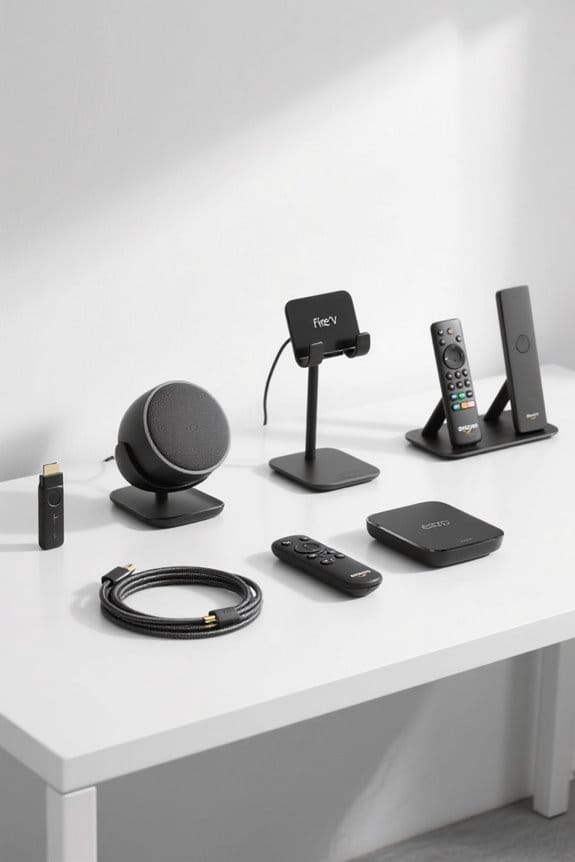

To fix audio sync problems on Fire TV streaming, users can try several helpful steps. Restart the Fire Stick by holding the Select and Play buttons together. Clear the app’s cache to boost performance. Adjust audio settings to Stereo, as this often minimizes delays. Regularly check for system updates to guarantee everything runs smoothly. If issues persist, users may also consider other devices for better compatibility. Curious about more detailed solutions? There’s plenty more to explore!
Key Takeaways
- Restart your Fire Stick by pressing the Select and Play buttons together to resolve minor glitches affecting audio sync.
- Clear the cache of the affected streaming app for improved performance and reduced audio delays.
- Adjust audio settings to Stereo instead of Dolby Digital to minimize latency during playback.
- Use the AV Sync Tuning tool in Settings to manually correct any audio-video synchronization issues.
- Ensure your Fire Stick software and apps are kept up-to-date to avoid compatibility issues that may cause audio sync problems.
Understanding Audio Sync Issues on Fire TV
Audio sync issues can be surprisingly common on Fire TV devices, which often leave users feeling frustrated during their viewing experiences. Many users report significant sync discrepancies, especially while using streaming apps like Xfinity Stream. These audio sync issues can stem from minor glitches in media files, app settings, or even outdated software on the Fire Stick. Sometimes, adjustments to audio formats—like Dolby Digital or stereo configurations—might help improve the situation. To tackle these problems, users may benefit from simple solutions such as restarting the Fire Stick, clearing app caches, or tweaking audio playback settings. Understanding these aspects can guide users in enhancing their streaming experience and possibly point them toward more compatible options (if needed). Additionally, choosing cases with automatic wake/sleep functionality for your Kindle or Fire device can help conserve battery life and improve user convenience.
Common Causes of Audio Delays

When it comes to enjoying streaming on Fire TV, more than just the content matters—syncing audio and video perfectly is essential for a seamless experience. Various factors can lead to audio issues that cause frustrating sync problems. For instance, minor glitches in the media or the streaming app can disrupt synchronization, while outdated applications or system software may also play a role. Additionally, using advanced audio settings like Dolby Digital Plus can occasionally cause latency. Secondary connections to soundbars or AV receivers might introduce delays during audio processing. Wireless casting methods, too, can add extra latency compared to direct connections, such as HDMI. Identifying these common causes can help enhance the overall viewing experience. Furthermore, the installation and setup of smart devices like smart switches can also affect the overall connectivity and performance of your home network, potentially leading to audio sync issues.
Troubleshooting Steps for Fire Stick Audio Problems
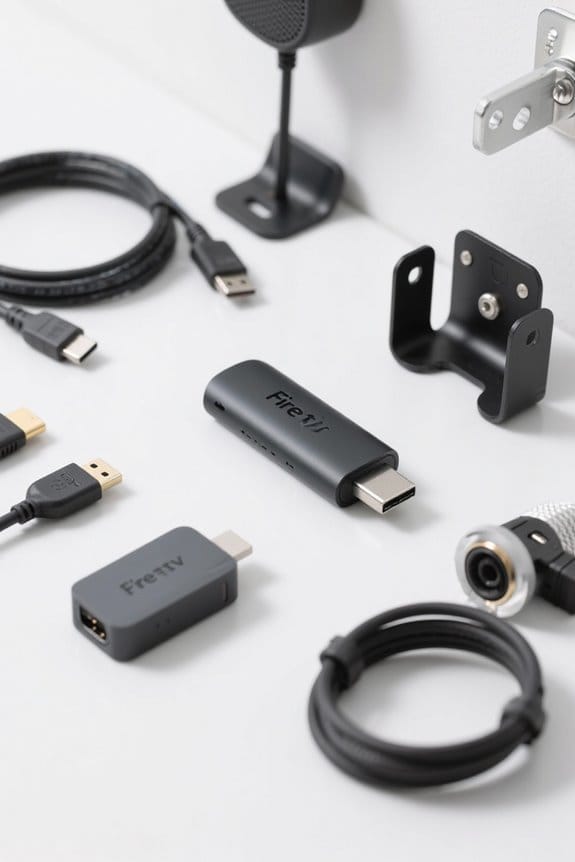
Fixing audio sync problems on a Fire Stick can often seem intimidating, yet it’s usually manageable with a few straightforward steps. First, try restarting the device by pressing the Select and Play buttons together until it powers off, then turn it back on. Next, clear the cache of the app causing issues, as this can enhance performance. Utilizing the AV Sync Tuning tool in the Fire Stick’s Settings may help adjust audio delays effectively. Additionally, changing audio options to Stereo instead of Dolby Digital can minimize sync issues when using streaming services. If connectivity issues persist, consider checking compatibility with Wi-Fi standards, such as Wi-Fi 6, as network stability is crucial for seamless streaming. Finally, verify that both your Fire Stick’s software and apps are always up-to-date to avoid persistent audio sync problems. Following these steps should improve the experience considerably!
Device and App Compatibility Considerations
Compatibility between devices and apps plays a significant role in the streaming experience. The Fire TV Stick Lite has been reported to experience audio sync issues, particularly with the Xfinity Stream app, which seems to struggle with this platform more than others. Users have noticed improved stability with alternative devices like Roku or even the new Apple TV version of the app. This suggests that app compatibility is not uniform across all systems, often affected by device-specific configurations. Frequent updates may help, yet persistent problems remain for Fire Stick users. Feedback indicates a clear demand for better app compatibility and synchronization performance, as users seek a smoother, more enjoyable streaming experience without unnecessary delays (or frustrations). Additionally, customizable motion zones available in some Ring floodlight models demonstrate how tailored settings can improve user experience, hinting at the importance of adaptable features in technology products.
Tips for Optimizing Your Fire Stick Experience
Improving the Fire Stick experience can lead to a more enjoyable streaming session, especially for those who love binge-watching their favorite shows. To tackle audio sync issues, regularly check for updates to both the Fire Stick system and installed apps, as this helps improve performance. Utilizing the AV Sync Tuning feature in the settings can also greatly enhance audio and video synchronization. When it comes to audio settings, choosing Stereo over Dolby Digital can minimize delays. Clearing an app’s cache now and then boosts functionality and resolves glitches that might affect sync. Additionally, connecting the Fire Stick directly to the TV’s HDMI port prevents latency from extra devices or adapters—keeping your viewing experience smooth. For those experiencing connectivity issues, consider using Ethernet adapters to provide a more stable internet connection, which can further improve streaming quality.
Future Expectations and User Feedback
As users navigate the evolving landscape of streaming services, their feedback often shapes the future of applications like the Xfinity Stream app. Unfortunately, many consumers are still having issues with audio and video sync, particularly on older Fire devices. This ongoing problem has led to a mainly negative sentiment, prompting some to contemplate switching to alternative service providers. The app, currently labeled as “in beta,” indicates that users might face continued instability without clear timelines for improvements. Additionally, concerns about increasing subscription prices weigh heavily on user loyalty, especially when service quality appears to decline. As Xfinity takes note of this feedback, enhanced communication regarding technical issues and resolutions could foster better user experiences moving forward. Alarm systems, like the KERUI Home Security Systems, demonstrate how important reliable technology is for consumer satisfaction and trust.
Frequently Asked Questions
Why Is My Fire TV Audio Out of Sync?
Frequent audio delays on Fire TV may stem from device compatibility issues, faulty settings, or streaming glitches. Employing troubleshooting tips like clearing cache or adjusting audio settings can effectively restore synchronization in playback experiences.
How to Fix Lips Out of Sync on Fire Stick?
To fix lips out of sync on Fire Stick, he recommended adjusting video playback settings, trying various audio delay solutions, and checking for device compatibility issues by connecting the device directly to the TV’s HDMI port.
Why Are the Voices on My TV Not Matching Mouths?
In a cinematic scene, mismatched lips dance with dissonant voices, creating frustration. These video playback issues, magnified by poor streaming quality, often stem from audio settings that require adjustment for harmony between sound and visuals.
How Do I Fix the Lag on My Amazon Fire TV?
To fix lag on Fire TV, users should restart the device, update software, clear app caches, adjust audio settings to Stereo, and guarantee a direct HDMI connection, all enhancing device performance and streaming quality.


