


To connect your Echo Show to Wi-Fi without issues, first, make certain you have a stable internet connection. Power on the device and press the Action button to enter setup mode. Then, open the Alexa app to choose your Wi-Fi network and enter the password. If you run into problems, verify the password and check the router’s status. Restarting both the Echo Show and your router can often solve temporary glitches. Keep exploring for more tips and solutions!
Key Takeaways
- Ensure your Echo Show is powered on and in setup mode by pressing the Action button until the light turns orange.
- Use the Alexa app to select the appropriate Wi-Fi network and enter the correct password for connection.
- Double-check the Wi-Fi password entered, as incorrect passwords are a common connection issue.
- Keep the Echo Show within range of the router for a stable connection and optimal performance.
- Restart the Echo Show and the router if connection issues persist, or consider resetting the Echo Show to factory settings.
Understanding the Importance of Wi-Fi for Your Echo Show

When considering how to maximize the potential of an Echo Show, understanding the importance of a solid Wi-Fi connection becomes crucial. A stable Wi-Fi connection is essential for the Echo Show to perform functions like streaming videos, making video calls, and controlling various smart home devices. Without a good internet connection, the device can only operate as a basic Bluetooth speaker, leaving users missing out on most features. Reliable Wi-Fi helps reduce lag and guarantees real-time responses during interactions with Alexa. For peak performance, connecting the Echo Show to a dual-band router is highly recommended. This setup allows users to tap into both 2.4 GHz and 5 GHz frequencies, thereby improving connectivity and overall functionality. It’s important to note that some smart devices, such as Kasa Smart Plug Ultra Mini, require a 2.4GHz Wi-Fi connection for optimal operation.
Step-by-Step Guide to Connecting Your Echo Show to WiFi

Connecting your Echo Show to Wi-Fi is a straightforward process that opens up a world of features and functionality. First, verify your device is powered on and in setup mode by holding the Action button until the light ring turns orange. To connect Alexa to WiFi, download the Alexa app on your smartphone, sign in with your Amazon account, and head to the Devices section to locate your Echo Show. From there, select the Wi-Fi Network option and choose your preferred home Wi-Fi network. You will need to enter the password for it. If issues arise, troubleshooting tips include checking the password, making sure the Echo Show is within router range, or rebooting both the device and the router to refresh connections. For users interested in smart technology features, these steps ensure a seamless connection and enhance the overall experience.
Recommended Products

Introduction Digital ultrasonic flaw detector is advanced type,, can quickly, easily and without damage, accurately detect, locate, evaluate and diagnose various defects inside the work-piece such as cracks, welds, pores, sand holes, inclusions, folding, etc. It has been applied for electric power, petrochemical, boiler and pressure vessel, steel structure, military, aerospace, railway transportation, automobile, machinery and other fields. It is an essential instrument for the non-destructive

Outdoor 4 is our fourth generation wireless smart security camera that helps you protect your home inside and out right from your smartphone.

COMPLETE TWO-PERSON WIRELESS PODCAST KIT: Zoom PodTrak P4 Next multitrack podcast recorder bundled with a BTA-2 Bluetooth adapter for wireless remote interviews and 2 ZDM-1 dynamic microphone packs each including headphones, tabletop tripod stand, shielded XLR cable, and foam windscreen; everything two co-hosts need to record with remote guests right out of the box
Connecting Your Echo Show to a New WiFi Network

Updating the Wi-Fi connection on an Echo Show opens the door to new features and improved functionality. To connect your device to a new network, first, open the Alexa app on your smartphone. Make certain the Echo Show is powered on, then press the action button until the light ring turns orange, indicating it’s in setup mode. Next, connect to the Amazon-XXX temporary Wi-Fi network displayed in your device’s settings. Afterward, choose your new WiFi network from the list, enter the correct password, and confirm the connection for seamless functionality. If there are issues, double-check the entered password, verify the router is working, and consider restarting both the Echo Show and router to refresh the connection effectively. For optimal connectivity, ensure that your router supports dual-band capabilities, which enhance performance for various activities.
Recommended Products


Teltonika RUTX50: 5G Router with 3.3 Gbps Download Speed

Watchguard T125-W Firebox with 3 Year Basic Security Suite License (WGT126033) - The T125-W adds Wi-Fi 7 capability to the powerful Firebox T125 platform. Designed for branch or remote offices, it delivers 510 Mbps UTM throughput, advanced security services, and full wireless coverage in a single, compact appliance.
How to Connect Your Echo Show to WiFi Without the App
Many users might find themselves needing to connect their Echo Show to WiFi without relying on the Alexa app. To start this setup process, first press and hold the action button until the light turns orange. This signals the device is in setup mode. Next, go to your WiFi settings and connect to the temporary network named “Amazon-XXX.” Once connected, open a web browser and visit alexa.amazon.com to access your Echo Show settings. Follow the instructions to choose your desired WiFi network, entering the correct WiFi password when prompted. Finally, click “Connect” to complete the process and establish a stable connection, allowing you to enjoy all the features of your Echo Show online (and perhaps even stream music). For an improved listening experience, consider using adjustable tilt and swivel features to optimize sound positioning when setting up speaker mounts.
Recommended Products
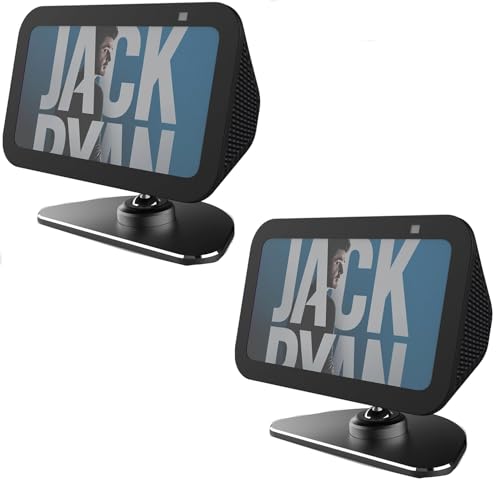
Wall mount for Amazon Echo Show 5: The first specially designed socket holder for the Amazon Echo Show 5 generation on the market (device and plug are not included), please note: we attach the groove of the Amazon Echo Show 5 mainly to the support arm. The double-sided tape is only an auxiliary function. You can check out our second picture. We guarantee that the correct operation can be completely fixed

Compatibility: This steel wall mounting bracket works for Show 21, show 15 (device not included). Heavy duty articulating arm holds up to 33lbs

【Compatible Devices】Made for Show 15 (Gen 1, Gen 2), and also compatible with Echo Show 21. Ideal for under-cabinet mounting in the kitchen. (This mount does not include the show 15 or show 21)
Troubleshooting Common WiFi Connection Issues
Resolving WiFi connection issues with an Echo Show can sometimes feel like a puzzle, but it’s often easier than it may seem. If the Echo Show is unable to connect, first verify the WiFi password entered during the Alexa setup is correct, as this is a common problem. Next, check the devices tab to confirm that the Wi-Fi network is operational by connecting another device. If that checks out, restart both the Echo Show and the WiFi router—this simple action can resolve many temporary glitches. In cases where the issues persist, consider resetting the Echo Show to factory settings and reconfiguring the Wi-Fi connection, as that often clears up persistent internal malfunctions. Additionally, ensure that the Echo Show is connected to a 2.4GHz Wi-Fi network, which is a common requirement for many smart devices, to ensure better compatibility and performance stability.
Recommended Products
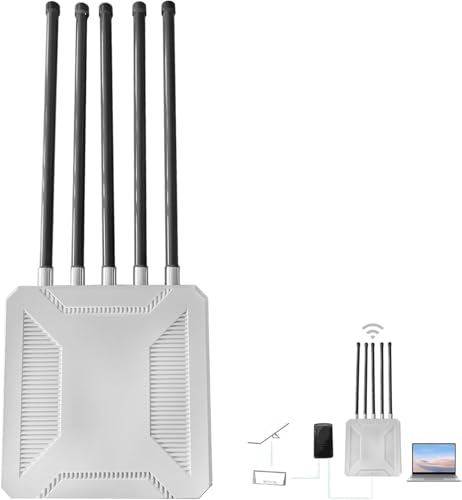
[High-Speed and Stable Network Extension]: This Starlink WiFi extender supports transmission speeds of up to 300Mbps, effectively expanding the signal coverage of the Starlink Gen 3 router. It ensures a smooth network experience in outdoor environments, making it particularly suitable for farms, yards, RVs, or campsites.
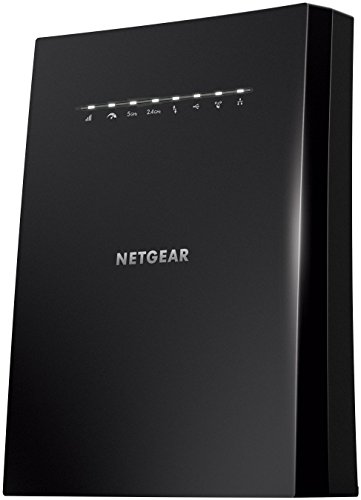
Extended wireless coverage: Adds Wi-Fi range coverage up to 2500 square feet, and connects up to 50 devices such as laptops, smartphones, speakers, IP cameras, tablets, IoT devices, and more

Dual Band 802.11BE Standard WiFi 7 with 4-Stream: Designed with the latest Wi-Fi 7 technology, achieve full speeds of 4323 (5 GHz band) and 688 Mbps (2.4 GHz band) with 4 streams, optimized signal distribution throughout your place, Enjoy seamless 8K streaming, AR/VR gaming, incredibly fast downloads/uploads and high performance on latest WiFi 7 laptops and devices, like the iPhone 16 Pro or above and Samsung Galaxy S24 Ultra
Tips for Enhancing Your Echo Show’s WiFi Connectivity
After addressing some common WiFi connection issues, it becomes clear that enhancing the connectivity of an Echo Show is an important task that can greatly improve the user experience. First, verify your Echo Show is within close range of your Wi-Fi router to reduce signal interference. Also, always double-check that you are entering the correct Wi-Fi network name and password, as minor typos can lead to connectivity issues. Periodically restarting your router can also refresh the connection and solve temporary glitches. For improved performance, consider using a dual-band router, connecting to the 2.4 GHz band for better range. Finally, keeping your Echo Show firmware updated guarantees you have the latest enhancements for peak Wi-Fi connection. If you have high internet demands or numerous devices, consider upgrading to a mesh WiFi system like the Amazon eero Pro 6E, which provides enhanced coverage and connectivity.
Recommended Products

THE SPEED OF EERO MAX 7 - With two 10 Gigabit Ethernet ports, you can enjoy wired speeds up to 9.4 Gbps, wireless speeds up to 4.3 Gbps, and multi-gigabit backhaul speeds—making your network seriously fast.

12 Stream 19 Gb/s Tri-Band WiFi – 11520 Mbps (6 GHz) + 5760 Mbps (5 GHz) +1376 Mbps (2.4 GHz)

FROM WHOLE HOME TO WHOLE PROPERTY - Use eero Outdoor 7 and eero Max 7 together to seamlessly stream, create, work, and play—inside and out.
Using Your Echo Show Without WiFi: Is It Possible?
How does an Echo Show fare when WiFi is nowhere to be found? Unfortunately, the Echo Show relies heavily on an internet connection for its key features. Without WiFi, users can only use it as a Bluetooth speaker, limiting its capabilities considerably. While you can still play audio from a paired device, essential functions like Alexa’s voice commands and smart home controls become inactive. To maintain basic functionality, users can utilize a mobile hotspot as an alternative internet source. Although it won’t reveal the full potential of the device, this method allows for some usage without WiFi, helping bridge the gap until a stable connection is restored. Think of it as a temporary solution to keep things running smoothly! Additionally, if you’re considering sound equipment for your home, look into soundbars with Dolby Atmos for an immersive audio experience.
Customer Experiences and Solutions for Echo Show WiFi Problems
While many consumers enjoy the features of the Echo Show, Wi-Fi connectivity issues can turn a promising experience into a frustrating one. Users often struggle with establishing a connection, even when other Echo devices on the same network work fine. Notably, the password input might not always guarantee success, leading to unnecessary stress. For some, persistent issues have necessitated multiple factory resets, highlighting this option as a viable solution. Technicians recommend ensuring the device connects to a compatible frequency, especially when launching a new WiFi network. If problems persist, consider resetting both the Echo Show and the router or checking for warranty replacements. For those looking to declutter limited spaces while managing tech devices, using organizational accessories can enhance accessibility and efficiency. Most importantly, never forget to use your Amazon account to complete the pairing!
Frequently Asked Questions
Why Won’t My Echo Show Connect to Wi-Fi?
When the Echo Show won’t connect to Wi-Fi, it resembles a bird struggling against a strong wind; issues often stem from weak Wi-Fi signal strength, interference sources, router compatibility, or incorrect network security settings requiring best troubleshooting practices.
Should I Connect Alexa to 2.4 or 5GHZ?
For ideal performance, connecting Alexa to 2.4 GHz provides advantages in connection range and device compatibility, especially in congested areas. In contrast, 5 GHz may struggle with speed and coverage, impacting streaming quality.
How Do I Manually Connect Amazon Echo to Wi-Fi?
In the domain of connectivity, Echo setup tips guide the way. By steering through wireless network configurations, users can master Alexa device management, employing Wi-Fi troubleshooting methods to guarantee smooth functioning of their Amazon device customization with Echo Show features.
How to Connect Echo Show to Wi-Fi Without App?
To connect the Echo Show to Wi-Fi without the app, one must access the device’s setup mode and utilize a web browser for home network setup, addressing connectivity issues while optimizing Wi-Fi signal strength for compatibility with features.


