


Fixing Bluetooth pairing problems between Echo devices and smartphones can be straightforward. First, confirm Bluetooth is enabled on both devices and they’re within five feet of each other. If issues persist, try resetting the Echo or clearing old connections on your phone, as clutter can cause hiccups. Also, check for interference from Wi-Fi routers or walls that may obstruct signals. Following these tips can often resolve issues, but if problems continue, explore deeper troubleshooting methods.
Key Takeaways
- Ensure both Echo and smartphone Bluetooth are turned on and within five feet for optimal pairing.
- Reset the Echo by holding the mic and volume down buttons for 15 seconds to clear any connectivity issues.
- Forget any previous Bluetooth connections on the smartphone to avoid memory conflicts and ensure a fresh pairing.
- Restart your Wi-Fi router to minimize potential signal interruptions that may affect Bluetooth connectivity.
- Remove physical barriers and other electronic devices from between the Echo and smartphone to reduce interference.
Understanding Bluetooth Pairing Mechanics
Understanding how Bluetooth pairing works can make the process smoother and less frustrating. Bluetooth pairing allows two devices, like Echo devices and smartphones, to communicate seamlessly. To guarantee Bluetooth pairing succeeds, users need to put both devices in pairing mode and keep them close—ideally within five feet. It’s important to be aware that significant version differences might cause pairing issues, yet most older devices support backward compatibility. Common troubleshoot steps to take into account include checking battery levels and removing previous connections, as Bluetooth accessories can only connect to one device at a time. External factors, like walls or obstructions, may also interfere with the Bluetooth signal, hindering successful connections between devices. A little understanding goes a long way in avoiding headaches. Additionally, using a USB Power Cable can help streamline connectivity issues by providing stable power directly from a TV’s USB port, ensuring a reliable setup for streaming devices.
Common Bluetooth Pairing Issues

Pairing Bluetooth devices can sometimes feel frustrating, especially when familiar hiccups arise. Many users encounter trouble pairing their Echo with smartphones due to several factors. First, make sure that Bluetooth on your phone is enabled, as it’s easy to overlook this step. Older models might also struggle due to outdated firmware, which can create compatibility hurdles. Additionally, physical proximity matters—devices should ideally be within five feet to connect. Interference from Wi-Fi networks or other wireless devices can disrupt signals, so relocating away from those sources can help. Finally, a purple light on the Echo Dot indicates connection issues, possibly tied to network settings or an incorrect Wi-Fi password, requiring further investigation. When troubleshooting, overcharging protection in devices can prevent damage and ensure longevity, and it’s important to consider these safety features in Bluetooth-enabled products.
Step-by-Step Troubleshooting Process
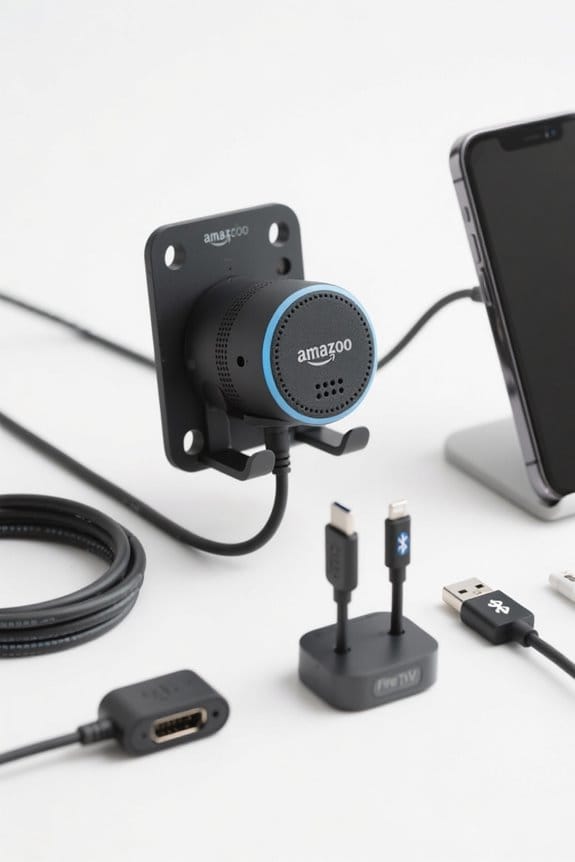
Fixing Bluetooth pairing issues doesn’t have to feel overwhelming; a straightforward troubleshooting process can make all the difference. First, verify Bluetooth connections are enabled on both the Echo Dot and the Samsung Galaxy S25, keeping them close—ideally within five feet. If problems arise, reset the Echo by holding the mic and volume down buttons for 15 seconds, activating setup mode. Using the Alexa app, tap the plus icon, select the Echo model, and follow prompts to connect to the same Wi-Fi network. Clear any previous Bluetooth connections on the Galaxy S25 by forgetting or unpairing the Echo. Additionally, ensure your sound system supports Dolby Atmos and DTS:X for an optimal audio experience. If issues linger, consider restarting the Wi-Fi router to resolve potential connectivity problems.
Managing Old Bluetooth Connections
Managing old Bluetooth connections is a key step to ensuring devices work smoothly and efficiently. These connections can cause pairing issues, as they occupy valuable memory or connection slots, hindering new devices from pairing successfully. To maintain peak performance, users should regularly remove older Bluetooth connections that are no longer in use. For Android, this involves selecting the device in the Bluetooth menu and choosing “Forget,” while iOS users tap the info icon for “Forget This Device.” By effectively managing connected devices, users can enhance functionality, allowing for easier and faster connections with new gadgets. Keeping the Bluetooth space uncluttered is not just practical; it also streamlines the entire pairing process (and who doesn’t appreciate a smoother setup?).
Addressing External Interference Factors
When attempting to establish a Bluetooth connection, external interference factors can play a significant role in determining success. Devices like WiFi routers and Zigbee gadgets often create interference, leading to frustrating connectivity issues during the pairing process. Physical barriers, such as walls or furniture, can also obstruct signals, making it harder for the Echo Dot and smartphone to connect. Additionally, Bluetooth operates in the 2.4GHz frequency range, which overlaps with many common household devices, intensifying the likelihood of complications. To enhance Bluetooth performance, it is wise to keep both devices charged and move them away from other electronic appliances emitting electromagnetic interference. By addressing these factors, users can improve their chances of a successful Bluetooth pairing experience. Moreover, selecting a WiFi Range Extender with robust security protocols can help mitigate interference and improve overall connectivity.
Seeking Further Assistance and Resources
For those still grappling with Bluetooth pairing dilemmas, there are several valuable resources to contemplate. Users can turn to Amazon support, which offers troubleshooting guides explicitly designed for Echo device connections. In addition, JustAnswer provides 24/7 expert assistance for those needing more personalized help. Engaging with user community forums can also be beneficial, as these platforms allow users to share their experiences and solutions with others facing similar problems. Moreover, YouTube tutorials supply step-by-step visual instructions, making the setup process easier to navigate. If issues persist beyond initial troubleshooting, seeking personalized assistance may assure a more tailored and effective approach to problem-solving (because everyone needs a little help sometimes, right?). Additionally, considering the privacy features available in newer Echo models can help address security concerns while resolving connectivity issues.
Frequently Asked Questions
Why Is My Echo Not Pairing With My Phone?
The Echo’s refusal to pair with a phone might stem from compatibility issues, Bluetooth connection errors, or overlooked smartphone settings. Updating device firmware and troubleshooting for interference could renew the hope of a successful connection.
How to Fix Bluetooth Pairing Problems?
To resolve Bluetooth connection issues, verify Echo device compatibility, check smartphone settings, clear cache, and update the Echo app. Following essential Bluetooth troubleshooting steps can effectively address pairing problems between devices.
How Do I Pair My Echo With My Phone Using Bluetooth?
Pairing an Echo with a phone via Bluetooth can seem as intimidating as climbing Mount Everest. Utilizing Echo functionality tips, users explore various Bluetooth connection methods and troubleshoot smartphone compatibility issues for a seamless wireless sound setup.
Why Is the Bluetooth Speaker Not Finding Devices?
The Bluetooth speaker may not find devices due to technology limitations, device compatibility issues, signal interference factors, and unmet software update needs; thorough Echo speaker troubleshooting is essential for resolving these connection challenges efficiently.


