


To disable the camera and microphone on Echo Show devices, users can simply say, “Alexa, turn the camera off,” for instant action. Swiping down from the top of the screen brings up settings, where users can manage camera options too. The red light indicates when both features are muted. For permanent changes, navigate through the device settings. Adding a physical camera cover is another smart option. Curious about enhancing your Echo Show experience even further?
Key Takeaways
- Say, “Alexa, turn the camera off” for quick deactivation, and verify via device settings.
- Swipe down from the screen, tap the Gear icon to access camera settings.
- Press the mute button to immediately disable both the camera and microphone, indicated by a red light.
- Make permanent changes in device settings to entirely disable the camera and microphone features.
- Consider using a physical camera cover for additional protection against unauthorized access.
Understanding the Importance of Privacy
Recognizing the significance of privacy can profoundly impact how one interacts with technology, especially with devices like the Echo Show. The built-in camera and microphone, while enhancing functionality, pose risks if left activated. Unauthorized users could exploit these features for unwanted surveillance. Regularly disabling these elements is essential for safeguarding personal privacy during everyday interactions. A user can take comfort when the red light illuminates, indicating that the camera and microphone are muted, offering a visible sign of protection. Additionally, physical covers for the camera can enhance security. Awareness of features like Drop In is also key, as it allows unannounced video calls, underscoring the vital need for diligent privacy practices when using smart devices like the Echo Show. When considering Alexa-compatible cameras, it’s important to evaluate their privacy settings to ensure they align with your security preferences.
Utilizing Voice Commands to Disable the Camera

While many users appreciate the convenience of having a camera on their Echo Show devices, the importance of controlling its access cannot be overstated. To disable the camera, users can simply say, “Alexa, turn the camera off.” This voice command effectively deactivates the camera, offering immediate privacy. However, it’s wise to make sure the camera is indeed off by checking the device settings afterward. Users should swipe down from the top of the screen for confirmation, as the voice command might not always be reliable. For extra security, pairing this command with physical camera covers is advisable. After all, a little extra precaution can go a long way in ensuring personal privacy in today’s digital environment. Integrating home security systems like KERUI or eufy can also enhance overall privacy and security measures at home.
Accessing Settings on the Echo Show

Accessing the settings on an Echo Show device is a straightforward process that allows users to customize their experience. To begin, simply swipe down from the top of the screen; this action reveals the quick action menu. Next, tap the Gear icon located at the top right corner of the screen to enter the device settings. From here, users can navigate to “Device Options” to find various configuration settings specifically for the Echo Show. We’ve got many options available, including the camera settings needed for those who want to toggle it off. Additionally, for microphone management, the mute button cuts power temporarily to both the microphone and camera, providing users with peace of mind. Solar panel chargers offer an environmentally friendly way to stay powered up, which is a concept many tech enthusiasts appreciate.
Recommended Products

HUNDREDS OF CHOICES: Show off your own unique style with Mighty Skins for your Echo Show! Don’t like the Focus skin? We have hundreds of designs to choose from, so your Echo Show will be as unique as you are!

PRIVACY PROTECTION: Slide privacy webcam covers ensure a efficiently protect online privacy. It will prevent hackers from spying on you or prevent unauthorized face recognition by closing the camera cover

?Protect Your Privacy?Concerned your webcam may be a target for hackers? Think it's already been hacked? We get you COVERED! GJ Adventure Webcam Cover ensures your privacy behind the camera. Slide works smoothly. Easy to open and close. Worry-free of closing your laptop by the ultra thin design.
Turning Off the Camera via Device Options
Once users have accessed the settings on their Echo Show, they can easily turn off the camera for added privacy. To do this, they need to swipe down from the top of the screen and tap the Gear icon. In the setting menu, moving to Device Options, they will find the Camera toggle to disable it. This step is part of user interface improvements that simplify device customization options. Additionally, users can also use the voice command, “Alexa, turn the camera off,” but verifying through settings is advisable for accuracy (just in case). Engaging in user feedback analysis has helped refine these features, ensuring a more personalized experience while maintaining essential privacy controls for customers. The privacy features across Echo Show models, including mic off buttons and camera shutters, are designed to give users control over their personal data and enhance security.
Recommended Products

OUR LARGEST SMART DISPLAY YET - A stunning 21" Full-HD (1080p) smart display with built-in Fire TV and Alexa that's perfect for your kitchen and built to show you more. Use customizable widgets to keep your day on track, experience your favorite content with powerful vibrant sound and immersive HD streaming, and stay connected with crisp, clear video calling, with 3.3x zoom and wide field of view.
Like-New Amazon Echo Show 21 is refurbished, tested, and certified to look and work like new and comes with the same limited warranty as a new device. Like-New Amazon devices may be packaged in generic Amazon-branded boxes.

Better inside and out – Entertainment is more immersive with spatial audio and an 8" HD touchscreen. Video calling is crisper with high-quality sound and a 13 MP camera. And your home is more connected than ever with the built-in smart home hub.
Mute Button: Quick Temporary Solutions
Occasionally, users may find themselves in situations where immediate privacy is a priority, and that’s where the mute button on Echo Show devices becomes incredibly handy. This convenient feature temporarily disables both the camera and microphones, signaled by a glowing red light. With just a press, users can achieve instant privacy solutions—perfect for video calls or when the Drop In feature is active. The red ring that surrounds the device serves as a helpful reminder that the camera is off. While the mute button features are ideal for short-term use, users should consider that permanent deactivation requires changes in device settings. User feedback is important in refining these functionalities, ensuring they meet privacy needs effectively. Dedicated buttons on Alexa remote controls can also offer quick access to popular streaming services, enhancing user convenience and ease of navigation.
Ensuring Drop in Feature Is Disabled
Maintaining control over personal privacy on Echo Show devices involves more than just using the mute button—it also requires managing the settings for features like Drop In. This feature allows unannounced video calls from contacts, which may raise Drop In concerns for privacy. To disable it, users should open the Alexa app, head to the Communicate tab, and check their profile to confirm that the “Allow Drop In” option is unchecked. Additionally, users should regularly verify their privacy settings, as updates might accidentally re-enable this feature. It’s also crucial to take into account the contact controls linked to Drop In, as they determine who can access the Echo Show’s camera and microphone. Staying informed creates a safer, more private experience. For enhanced management of your smart home devices, consider air purifiers with voice control with Alexa, offering seamless integration and operation.
Physical Camera Covers for Added Security
For those looking to bolster their privacy, physical camera covers offer an effective solution for Echo Show devices. Various camera cover options are available, including laptop webcam-style covers that can be easily adapted. These covers help secure privacy by completely blocking the camera, thereby preventing unauthorized access, while ensuring device compatibility by not obstructing the essential light sensor. This is vital, as a film covering the sensor could interfere with the device’s ability to perform its functions properly. Additionally, tailored covers specifically designed for smart devices can provide a better fit. Utilizing a physical cover serves as a reliable safeguard against potential software bugs or hacks that could inadvertently reactivate the camera, ensuring peace of mind. When selecting a camera cover, consider materials frequently used such as aluminum or plastic for durability and effectiveness.
Recommended Products

【Protect Privacy Security】 Protects your personal & family privacy by 1 slide only, prevents web hackers from Spying, and also protects your front camera from dirt and dust.
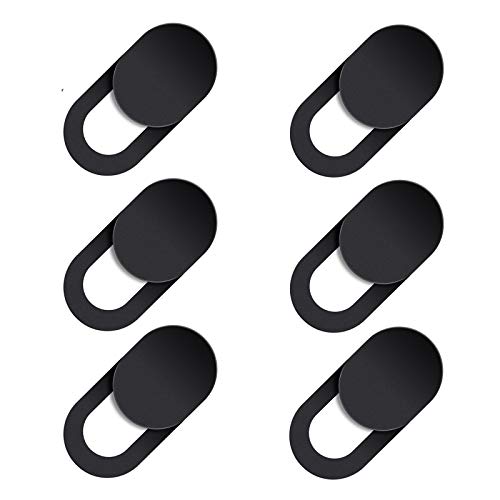
【Protect Privacy Security】We can stop hackers by turning off the camera, camera cover slide effectively protect personal and family privacy security.

PROTECT YOUR PRIVACY: imluckies webcam cover that protect your privacy in a discreet and yet stylish manner.
Managing Audio Behavior on Echo Devices
Managing audio behavior on Echo devices can be an essential aspect of guaranteeing a user’s privacy and comfort. Users have the opportunity for audio settings management by utilizing voice commands or the physical mute button. This allows for effective privacy control measures, cutting power to both the microphone and camera while a red light indicates activation. Notably, live audio from camera feeds is enabled by default, which may affect user experiences if not addressed promptly. By actively engaging with their Echo devices, users can customize their audio preferences and mute unexpected sounds easily. These user engagement strategies not only enhance the functionality of the device but also guarantee that personal privacy remains a priority in daily interactions. It’s important to consider that smart home devices, like Alexa-enabled door locks, also emphasize privacy and security through features like AES-128 encryption and real-time notifications.
Verifying Successful Camera and Microphone Disable
Although ensuring that the camera and microphone on an Echo Show device are disabled is an important step for privacy, verifying these settings can sometimes be overlooked. To check if the camera is off, swipe down from the top of the screen, navigate to Device Options, and make sure the Camera option is toggled off. Pressing the mute button turns off both the microphone and camera, confirmed by a red light. After using the voice command “Alexa, turn the camera off,” it’s wise to verify in settings, addressing any lingering trust in the command’s effectiveness. Additionally, consider a physical camera cover for extra security, addressing camera security risks and microphone privacy concerns related to Echo Show vulnerabilities. For added functionality, consider using Amazon Smart Plug to automate other devices in your smart home, enhancing convenience and control.
Exploring Multi-Camera Setups With Alexa
How can adding multiple cameras enhance the smart home experience with Alexa? Integrating multiple cameras into a smart home system boosts security enhancements by allowing users to monitor various areas simultaneously. With compatible Echo Show devices, homeowners can easily view live feeds from all connected cameras, making it simple to keep an eye on different spots. Voice control adds another layer of convenience; users can switch views or request specific camera feeds using Alexa, eliminating the need for manual adjustments. However, it’s worth noting that audio features may differ by camera model, impacting the overall monitoring experience. As updates roll out, future improvements might enhance two-way communication, making multi-camera setups even more versatile. For those concerned about privacy, it’s important to choose devices with user data management options, as these features play a crucial role in maintaining user trust and security.
Enhancing Your Echo Show Experience
When users want to elevate their Echo Show experience, they often discover that simple adjustments can lead to significant improvements. By saying, “Alexa, turn the camera off,” they secure instant privacy, showcasing the convenience of voice assistants. Users can also swipe down to the Gear icon to manually disable the camera through the Device Options menu. For a quick toggle, the mute button is a handy feature, lighting up red to indicate the camera and microphone are powered down. Additionally, disabling the Drop In feature in the Alexa app enhances smart privacy, preventing unexpected video calls. For extra security, a physical camera cover can block unauthorized access while keeping the light sensor unobstructed for peak function.
Staying Informed on Emerging Tech Solutions
With the fast-paced world of technology constantly evolving, keeping informed about the latest solutions for privacy in devices like the Echo Show is more important than ever. Emerging privacy technologies, such as voice commands like “Alexa, turn the camera off,” provide users with convenient ways to manage their privacy. Additionally, maintaining user consent protocols is essential; users can control features like Drop In through the Alexa app, ensuring only authorized access to their device. Implementing effective firmware update strategies can further protect against vulnerabilities that might compromise cameras or microphones without user knowledge. Staying updated helps users confidently navigate their Echo Show devices while safeguarding their personal space and privacy (because nobody wants unexpected visitors, right?).
Frequently Asked Questions
How Do I Disable the Camera on Echo Show?
To disable the camera on an Echo Show, one must adjust the camera privacy settings, utilizing the device’s features. This includes toggling the camera option off and verifying settings for video calling options.
How Do I Disable the Microphone on Echo Show?
To disable the microphone on an Echo Show, users can utilize the microphone privacy settings by pressing the mute button, ensuring voice command restrictions are active. The red light confirms the Echo Show features are deactivated.
How Do I Stop the Echo Show From Listening?
To stop the Echo Show from listening, one must address privacy concerns by muting the device. For enhanced voice recognition control and improved device security, it’s prudent to disable features that allow unsolicited surveillance.
How Do I Turn off Microphone Echo?
To turn off the microphone on an Echo device, users can access device settings to mute it. This enhances Echo privacy while disabling voice control, preventing any unintended listening or interaction until reactivated.


