


To customize wake words on Echo devices, users can leverage Raspberry Pi with a USB microphone. First, set up the Raspberry Pi and install necessary software like Python. Then, create a custom wake word using the PicoVoice Porcupine engine, connecting it to a solenoid for activation. Confirm the microphone is recognized by the Pi and test the setup for responsiveness. With a little technical know-how, customizing wake words is achievable and adds a fun personal touch to device interactions. Curious about the details?
Key Takeaways
- Echo devices do not support custom wake words, only pre-set options like “Alexa,” “Echo,” or “Amazon.”
- Alternative methods, such as using a Raspberry Pi and external software, allow for personalized wake word detection.
- Utilize the PicoVoice Porcupine Wake Word engine for creating custom wake words offline with Raspberry Pi.
- Ensure your Raspberry Pi setup includes a USB microphone for accurate audio capture during activation.
- Modify scripts and configurations on the Raspberry Pi to recognize and respond to your chosen wake word.
Supplies and Equipment Needed
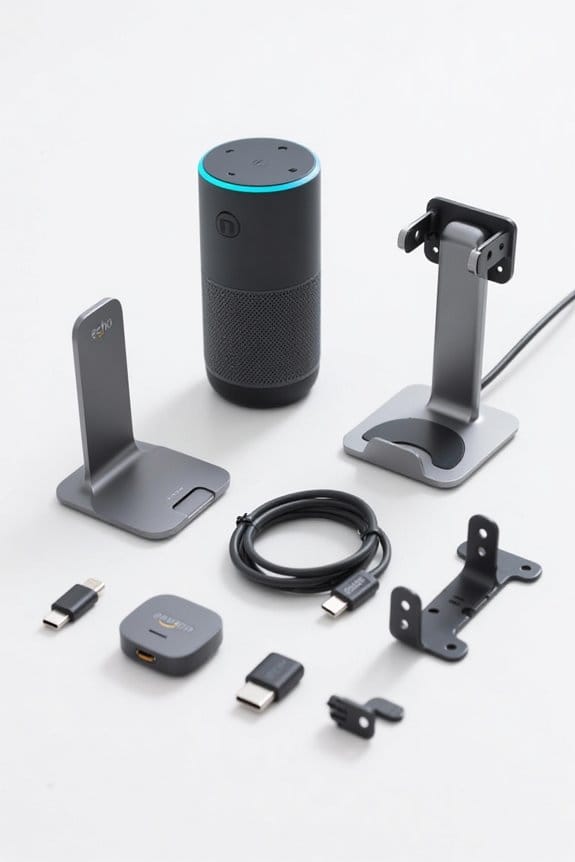
When starting on the journey to customize wake words on Echo devices, gathering the right supplies and equipment is vital for success. First, one needs a Raspberry Pi Zero 2W, alongside an SD card with 8-32 GB of storage. A reliable power supply is also essential for operation. To guarantee sound detection, a small USB microphone should be included in the supplies and equipment needed. Additionally, a mini 5V solenoid is important for mechanical actuation. Don’t forget components like a TIP120 power transistor and a 1N4001 diode, which aid in controlling the circuit. Finally, access to a 3D printer helps create a customized solenoid holder, making everything fit nicely around your Alexa device for that perfect Custom Wake Word experience. For those requiring a reliable network connection, a USB Ethernet Adapter like the UGREEN model can provide speeds up to 1000Mbps, ensuring seamless internet access for your setup.
Setting Up the Raspberry Pi
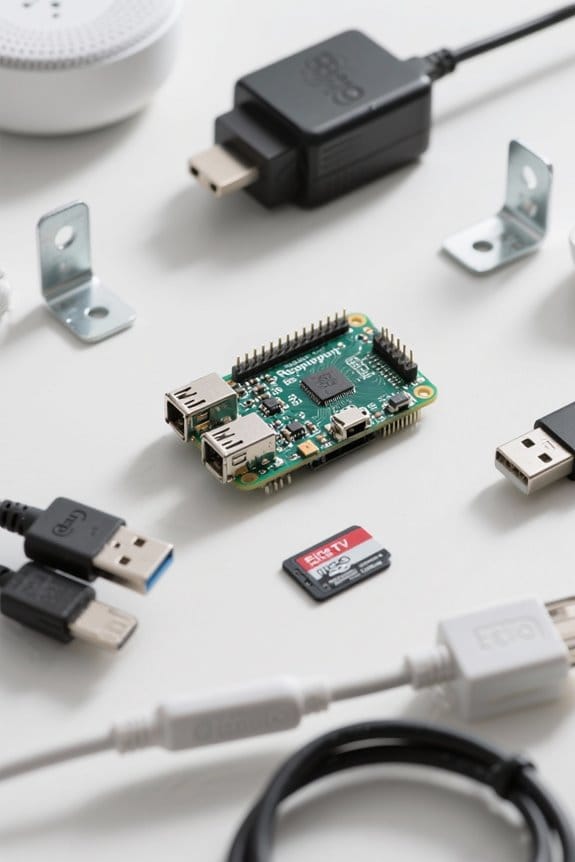
Setting up the Raspberry Pi for custom wake word detection opens up a world of potential for Echo device customization. To begin, one must download the Raspberry Pi imaging program and install Raspberry Pi OS (Legacy) Lite for headless use. During setup, configuring the Wi-Fi, creating a username and password, and enabling SSH for remote access are crucial steps. Once connected, installing necessary software packages is essential—you’ll need commands for `python3-pip`, `pvrecorder`, and `pvporcupine`. If the USB microphone isn’t detected, restarting the Raspberry Pi is a good workaround. Finally, to auto-start the CustomWake.py script on boot, simply edit the .bashrc file with the command `python3 /home/mike/CustomWake.py` (seriously, it’s that easy!). Adding motion sensor lights to your Raspberry Pi setup can enhance security and accessibility during nighttime use.
Creating Your Custom Wake Word
Creating a custom wake word for an Echo device can greatly enhance the user experience, allowing for more personalized interactions. To initiate this journey, users can utilize a Raspberry Pi paired with the PicoVoice Porcupine Wake Word engine for offline detection. First, the Raspberry Pi needs a proper setup with Raspberry Pi OS Lite, Wi-Fi configuration, and SSH access. A USB microphone should be connected to guarantee accurate audio capture. Then, visit picovoice.ai to generate your desired custom wake word. Modifying the CustomWake.py script to include your access key and the .ppn file name finalizes the process. For an extra touch, users can build a circuit with a solenoid, activating their Echo device upon recognizing the custom wake word. This personalized setup ensures that the Echo device only responds to the chosen wake word, enhancing indoor air quality as it minimizes unintentional interactions that could lead to unnecessary device activation and potential information overload.
Connecting the Microphone
Connecting a USB microphone to the Raspberry Pi is an essential step in establishing an effective custom wake word system. First, use an appropriate adapter to guarantee compatibility with the Raspberry Pi’s USB ports. Once connected, check if the microphone is detected, and don’t be surprised if a reboot is necessary for it to appear. Many smart switches, like the Kasa HS220, require a neutral wire for installation, which may affect how you plan your setup. To verify the microphone’s functionality, execute the command `arecord -l` in the terminal to list audio devices. If the USB microphone isn’t recognized, editing audio configuration files may be needed to set it as the default input. This setup will greatly enhance performance when users want to change Alexas or interact with their Alexa device more seamlessly. Happy connecting!
Programming the Raspberry Pi
With a USB microphone successfully connected to the Raspberry Pi, the next step involves programming the device to recognize custom wake words. To begin, users will need a Raspberry Pi Zero 2W and should install the Raspberry Pi OS (Legacy) Lite for a headless setup. After signing up for the PicoVoice SDK, they can generate a unique access key needed for implementation. Next, download and edit the CustomWake.py script with specific configurations for the custom wake words. Once ready, transfer the script to the Raspberry Pi for execution. To streamline the process, modifying the .bashrc file to include the script path guarantees the custom wake word script runs automatically upon booting the Raspberry Pi—making it ready to respond at any time! For those using styluses on touch devices, look for high-pressure sensitivity to enhance precision and creativity in related applications.
Building the Circuit for Activation
To start building the circuit for activating the custom wake word setup, it is imperative to prioritize safety by powering off the Raspberry Pi before attaching any components. First, connect a mini 5V solenoid to the Raspberry Pi’s GPIO pin 23. This solenoid acts as a trigger for the circuit when the custom wake words are detected. Incorporating a TIP120 power transistor is essential for managing the higher voltages safe for the Raspberry Pi. Additionally, use a 1N4001 diode to protect against back EMF from the solenoid, which can damage the device. Once assembled, power on the Raspberry Pi and get ready to see how your personal assistant responds, ensuring everything operates smoothly. To enhance your smart home setup, consider adding Echo Dot accessories that provide functional upgrades and improve usability.
Testing Your Setup
Before diving into the testing phase of the custom wake word setup, it’s important to guarantee that everything is in place for an effective trial. To begin testing your setup, run the CustomWake.py script on your Raspberry Pi by typing `python CustomWake.py`. Speaking the designated wake word will allow you to see if it triggers correctly. Make sure the USB microphone is properly connected and recognized; any malfunction could disrupt detection. If recognition issues arise, check for hardware problems, microphone settings, and reduce background noise. Smart plugs should support Alexa without needing a hub, allowing for seamless integration into your smart home setup. After testing, don’t forget to stop the script with Ctrl-C and modify the .bashrc file for auto-starting on boot. This guarantees your custom setup is always ready!
Frequently Asked Questions
Can I Customise Alexa Wake Word?
The available wake word options for Alexa are limited to predefined selections. Although complete customization isn’t supported, users can change the wake word through settings, affecting the device’s voice recognition and responsiveness.
How Do I Change the Wake up Word on Amazon Echo?
Over 70% of Amazon Echo users prefer using a personalized wake word. To change the wake word, access the echo settings in the Alexa app under ‘DEVICES’, select the device, and adjust the wake word option.
Can You Change Alexa’s Name to Anything You Want?
No, users cannot change Alexa’s name to anything they want. The available wake word options are limited, and while third-party voice recognition solutions exist, they require complex setup and do not provide endless customization.
Can I Make a Custom Wake Word?
Custom wake options for voice assistants are not natively supported. However, users can personalize their experience through complex setups involving Raspberry Pi and third-party services to create unique activation phrases, demanding technical knowledge and additional hardware.


